Ransomware protection for homes and small shops: how viruses get in, built-in antivirus, safe downloads, 3-2-1 backups and what to do if you are hit.
📑 In this guide
- Viruses, trojans, ransomware and infostealers in plain words
- How malware gets onto your computer
- Protection layers that stop most attacks
- Keep everything updated
- Use the built-in antivirus
- Use a standard user account
- Be careful with what you open and install
- The 3-2-1 backup rule, with one copy offline
- What to do if ransomware hits
- Quick checklist
- FAQ
- Do I need paid antivirus for Windows?
- Can Macs get viruses or ransomware?
- Is cloud storage enough to protect against ransomware?
- Should I ever pay the ransom?
Good ransomware protection for a home or small shop rests on three layers: keep your computer updated, use the antivirus already built into Windows or macOS, and keep backups that malware cannot reach. Add careful habits around downloads and email attachments, and you block most of the ways viruses get in. If something still goes wrong, a tested backup lets you recover without paying anyone.
This matters because one bad file can lock your family photos, your shop's invoices and your customer list in a single afternoon. Some malware also steals saved passwords quietly, so you may notice nothing until money is gone or an account is taken over. The defences are free or already on your computer.
Viruses, trojans, ransomware and infostealers in plain words
- Virus or worm: harmful code that copies itself to other files or computers.
- Trojan: a program that pretends to be useful, such as a free tool, a game cheat or an "invoice viewer", and does harm in the background.
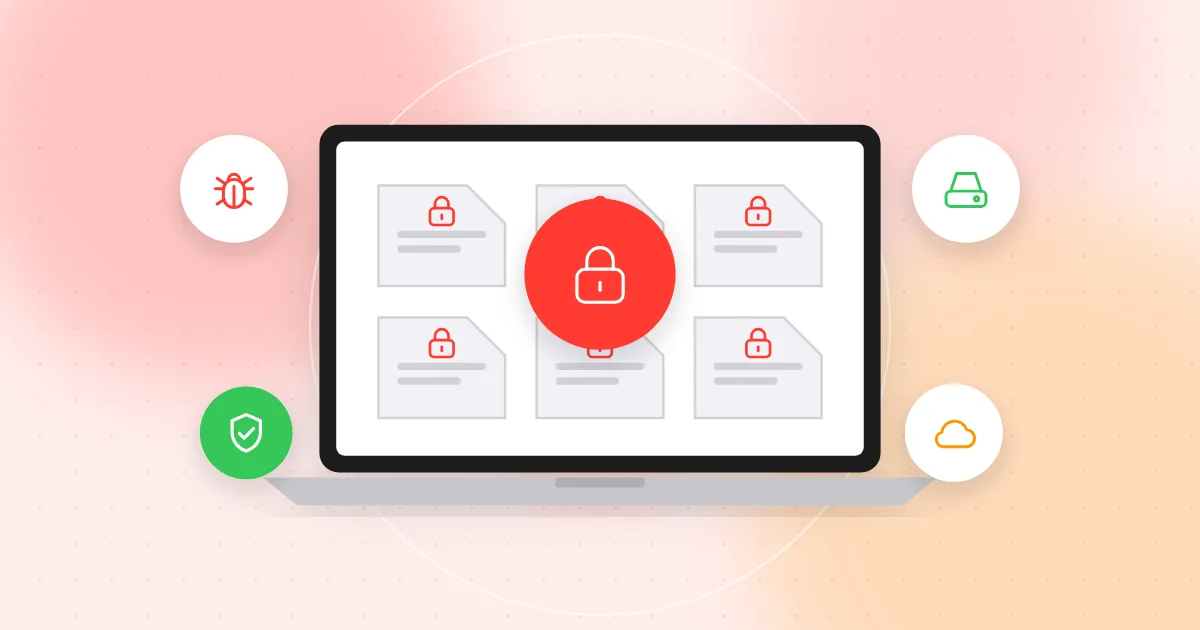
- Ransomware: malware that encrypts your files so you cannot open them, then demands payment for a key. Many groups also copy your data first and threaten to publish it.
- Infostealer: malware that collects saved browser passwords, cookies and documents and sends them to criminals, often without any visible sign.
Attacks often combine these: a trojan gets in, an infostealer takes passwords, and ransomware comes later.
How malware gets onto your computer
- Email attachments. Fake invoices, delivery notices or "scanned documents" with ZIP files, or Office files that ask you to enable content.
- Cracked software and game cheats. Free copies of paid programs, key generators, mods and cheats are a very common source of infostealers, especially on family computers.
- Fake download buttons. Download sites full of large "Download" buttons that are really ads, and search ads that lead to copies of real software websites.
- Malicious ads and pop-ups. Messages saying your computer is infected or your browser needs an urgent update.
- USB drives. A found drive, or one passed between shop computers, can carry malware.
- Unpatched systems. Old versions of Windows, browsers or plug-ins with known weaknesses that were never fixed.
- Remote desktop open to the internet. Attackers try thousands of passwords against exposed remote desktop until one works. If you need remote access, use a VPN or a remote access service with two-factor authentication. See also our guide to remote access app scams.
Protection layers that stop most attacks
Keep everything updated
- Turn on automatic updates for Windows or macOS, and restart when asked so updates actually install.
- Keep browsers, Office apps and PDF readers updated, and remove programs you no longer use.
- Replace computers that no longer receive security updates, especially those used for banking or business.
Use the built-in antivirus
- Windows: Microsoft Defender is built in. Open the Windows Security app and check that virus protection, firewall and updates are on. Consider turning on controlled folder access, a ransomware protection feature that stops unknown programs from changing your protected folders.
- macOS: Gatekeeper checks downloaded apps and built-in malware protection runs in the background. Keep the default that allows apps only from the App Store and identified developers.
- Run only one real-time antivirus program at a time; two can conflict.
Use a standard user account
Do daily work in a standard (non-administrator) account and keep a separate administrator account for installing software. In a shop, give each staff member their own standard account.
Be careful with what you open and install
- No pirated software, cracks or cheats. Buy the software, use a free official alternative, or do without.
- Download only from the official website or app store. Type the address yourself instead of clicking search ads.
- Respect macro warnings. If a document asks you to "Enable content" or "Enable macros" to see the text, close it.
- Listen to browser download warnings. If your browser says a file is uncommon or dangerous, delete it.
- Do not plug in unknown USB drives.
- Check links first. If a link arrives as a QR code on an invoice or flyer, you can scan it online to see the full address before opening it.
The 3-2-1 backup rule, with one copy offline
Backups are your real insurance against ransomware:
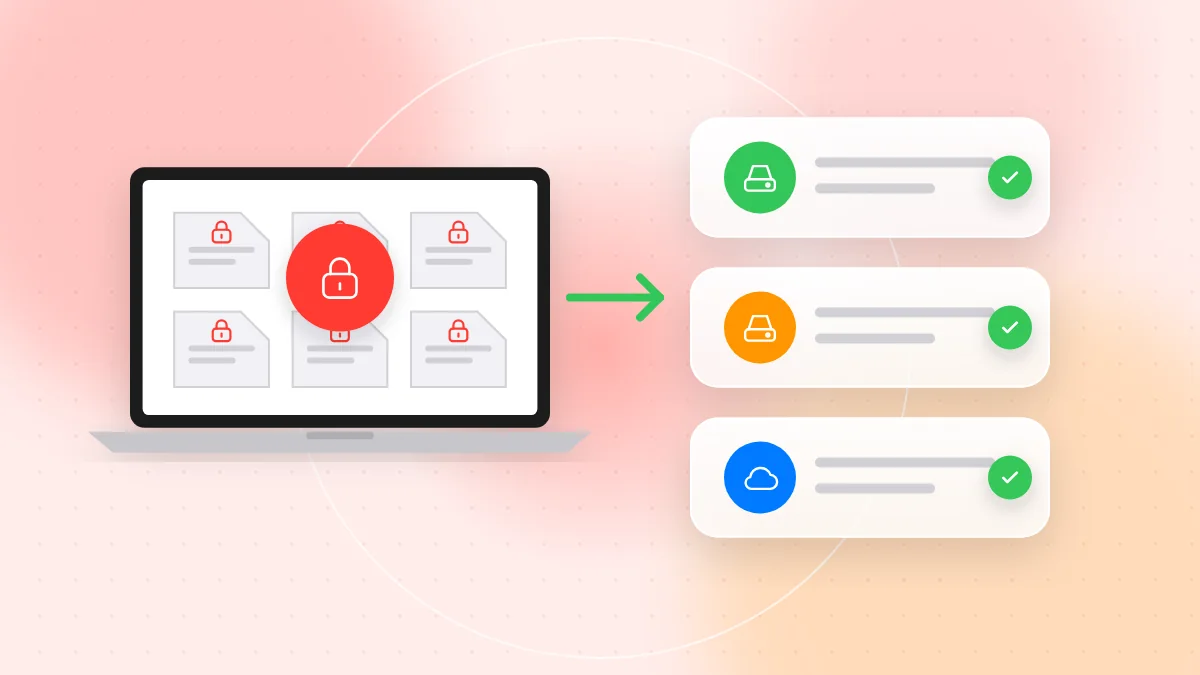
- Keep 3 copies of important data: the original plus two backups.
- Use 2 different types of storage, for example an external drive and a cloud backup service.
- Keep 1 copy offsite or offline, away from the computer.
Ransomware encrypts every drive it can reach, including an external disk that stays plugged in, and synced cloud folders can copy the damage. So:
- Plug in the external drive for the backup, then unplug it and store it safely.
- Choose a cloud backup with version history, so you can restore files from before the attack. File sync alone is not a backup.
- Protect the backup account with a unique password and two-factor authentication.
Test your restores. Every few months, restore a few files to a different folder and open them. A backup you have never tested may be incomplete. In a shop, write down how to restore.
What to do if ransomware hits
- Disconnect. Unplug the network cable, turn off Wi-Fi and remove external drives. Do not wipe the computer yet; it may be needed as evidence.
- Check other devices. Look at shared folders, other computers and the point-of-sale system.
- Do not pay as a first step. Paying does not guarantee you get your files back and funds further attacks. Check your backups and get professional advice first.
- Report it. Contact your local police or national cybercrime reporting service. If customer data may be affected, check your legal duty to report it, and tell your bank if payment details were involved.
- Restore from a clean backup. Reinstall the operating system or have a professional clean the computer, install all updates, then restore files from a backup made before the infection.
- Change passwords from a clean device. Use a phone or another computer, starting with email, banking and backup accounts, and sign out of other sessions.
If the problem is on a phone, see our guide to phone virus signs and removal.
Quick checklist
- Automatic updates are on for the system, browser and apps.
- Microsoft Defender or macOS protections are active, with only one antivirus running.
- Daily work happens in a standard user account.
- No cracked software, key generators or game cheats on any computer.
- Documents that ask for macros are closed, not enabled.
- Remote desktop is not open to the internet.
- You follow the 3-2-1 backup rule, with one copy offline.
- You tested a restore in the last three months.
- Everyone knows the first step if ransomware appears: disconnect.
FAQ
Do I need paid antivirus for Windows?
For most home users and small shops, Microsoft Defender with automatic updates is a good base. Updates, careful downloads and offline backups matter more than which antivirus you choose.
Can Macs get viruses or ransomware?
Yes, although less often than Windows computers. Infostealers hidden in fake apps and cracked software do target Mac users, so the same rules apply.
Is cloud storage enough to protect against ransomware?
Not on its own, because synced folders can copy encrypted files to the cloud. Use a backup with version history and keep one offline copy as well.
Should I ever pay the ransom?
Treat paying as a last resort, never a first step. Check your backups, report the attack and get professional advice; payment does not guarantee you will get your files back.
Protecting your computer is mostly about updates, careful downloads and a backup you have tested. Many infections start with a single link, so when a QR code on an invoice or flyer looks unusual, check where it leads with QR-TH's free online scanner before you open it.