Worried about a phone virus? Learn the real signs of malware on Android and iPhone, what is normal, how to remove it step by step and secure your accounts.
📑 In this guide
- Realistic signs your phone has a virus or spyware
- What is NOT a sign of a phone virus
- How iPhone and Android differ
- How to remove malware from Android, step by step
- How to clean up an iPhone
- Factory reset: the last resort
- Secure your accounts afterwards
- Quick checklist
- FAQ
- Can iPhones get viruses?
- Do I need an antivirus app on my phone?
- Can scanning a QR code give my phone a virus?
- Will a factory reset remove all malware?
A phone virus in the classic sense is rare, but malware and spyware on phones are real. The warning signs are usually unknown apps, pop-up ads that appear outside any app, settings that change by themselves, and unfamiliar apps with accessibility or device-admin access. If you see these, you can usually clean the phone yourself by removing the app, scanning, updating and, only as a last resort, resetting it.
This matters because your phone is the key to your money and accounts. Harmful apps can read your screen, capture one-time codes, show fake login pages or let a stranger control the phone remotely. Knowing the real signs helps you act quickly without worrying about normal things.
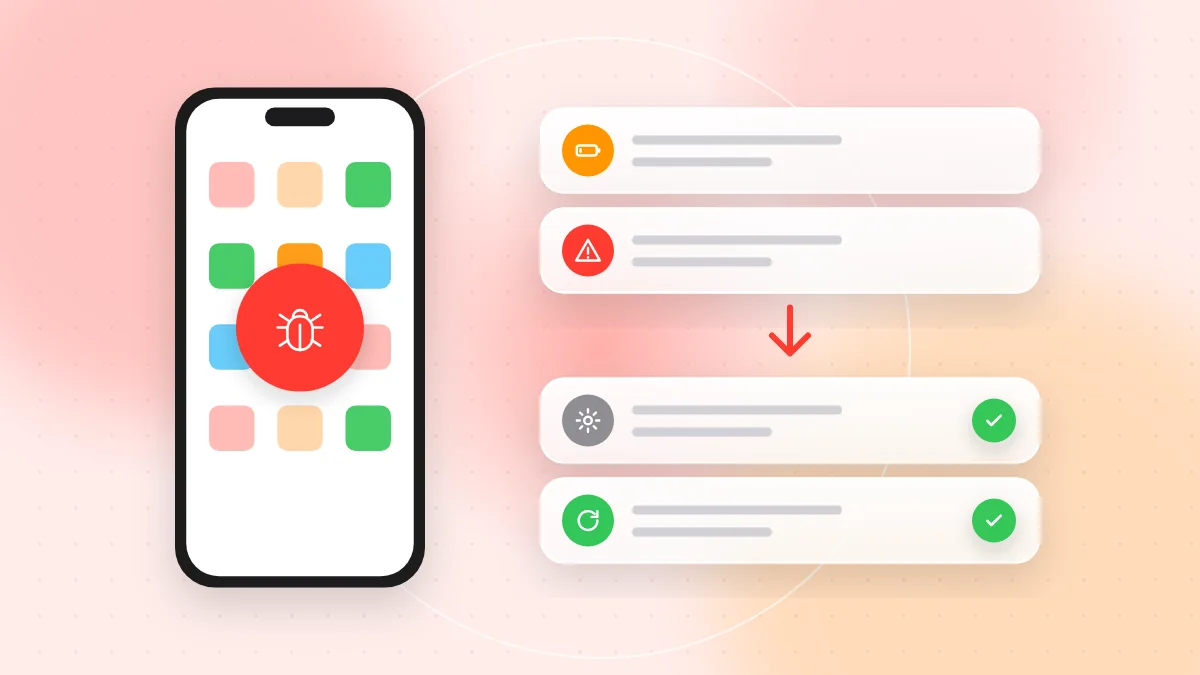
Realistic signs your phone has a virus or spyware
Self-copying viruses are almost unknown on modern phones. The real problem is malicious apps: adware, banking trojans and stalkerware. Look for:
- Apps you don't remember installing, especially with generic names like "System Update" or a blank icon.
- Pop-up ads outside apps, for example full-screen ads on your home screen or when you unlock the phone.
- Battery or mobile data use that suddenly jumps with no change in your habits. Your battery and data settings show which app is responsible.
- Settings changed without you, such as a new home screen app, a new default browser or search engine, or security features turned off.
- Unknown apps with accessibility or device-admin access. This powerful access lets an app read the screen, tap buttons for you or block its own removal.
- Login alerts you don't recognise from your email, social media or bank.
- Money missing, unknown purchases or premium SMS charges on your phone bill or bank statement.
One sign alone is not proof. Two or three together, especially an unknown app plus a changed setting, deserve action today.
What is NOT a sign of a phone virus
- The phone gets warm while charging, gaming, filming video or using navigation. This is normal heat.
- An older phone feels slow. Ageing batteries and full storage are the usual reasons.
- A "Your phone has a virus!" warning in the browser. This is almost always a fake ad. Close the tab without tapping anything.
- One strange ad inside a free app. Ads inside free apps are normal. Ads outside apps are the warning sign.
How iPhone and Android differ
iPhone (iOS) only installs apps from the App Store in most regions and keeps apps tightly separated, so real malware is uncommon. Typical problems are:
- Configuration profiles or device management you didn't set up, which can control settings or route your traffic
- Spam calendar subscriptions that fill your calendar with fake "virus" alerts and links
- Someone who knows your passcode or Apple Account password and has access to your data
- Highly targeted spyware, which is rare and usually aimed at journalists, activists or officials
Android lets you install apps from outside Google Play, which is the most common way infections start. Fake apps sent through links or QR codes often ask for accessibility access to take over the phone. Our guides on how to spot fake apps and remote access app scams explain these tricks in more detail.
How to remove malware from Android, step by step
If someone may be controlling your phone right now, first turn off Wi-Fi and mobile data.
- Restart in safe mode. Safe mode temporarily disables apps you installed yourself. On most phones, press and hold the power button, then press and hold "Power off" or "Restart" until a safe mode option appears. Methods vary by brand. If the pop-ups stop in safe mode, an installed app is the cause.
- Remove accessibility access. Go to Settings > Accessibility and look under installed or downloaded apps. Turn off any app you don't recognise or don't trust.
- Remove device-admin rights. Search your Settings for "device admin apps" (often under Security or Security & privacy). Deactivate any app that shouldn't be there. This lets you uninstall it.
- Uninstall the suspicious apps. Go to Settings > Apps, show all apps, and remove anything unknown.
- Run a Play Protect scan. Open Google Play, tap your profile picture, choose Play Protect and scan. Make sure Play Protect is turned on.
- Update everything. Install the latest system update and update your apps from Google Play.
- Review permissions. Check which apps can read SMS, see notifications, draw over other apps or install unknown apps. Our app permissions guide shows what to look for.
How to clean up an iPhone
- Update iOS. Go to Settings > General > Software Update.
- Check for unknown profiles. In Settings > General, open VPN & Device Management. If you see a profile you didn't install and it isn't from your workplace or school, remove it.
- Delete spam calendars. In your calendar settings, remove subscribed calendars you don't recognise. Don't tap links inside those events.
- Delete unknown apps and clear Safari's history and website data.
- Change your passcode and Apple Account password, and check the list of devices signed in to your account. Safety Check, in Privacy & Security settings, helps you review who has access.
Factory reset: the last resort
If problems continue after these steps, a factory reset erases the phone and removes almost all malware. Before you do it:
- Back up photos, contacts and files, but don't back up suspicious apps or their data.
- Make sure you know your Google account or Apple Account password. After a reset, the phone asks for it, and without it you may be locked out.
- After the reset, reinstall apps one by one from Google Play or the App Store instead of restoring everything at once. Restoring a full backup made after the infection can bring problems back.
Secure your accounts afterwards
If malware was on your phone, assume your passwords and codes may have been seen.
- Change passwords from a clean device, starting with email, then banking and social media. Your email matters most, because it can reset everything else.
- Turn on two-factor authentication and sign out of all other sessions in each important account.
- Call your bank using the number on your card if you see unknown payments.
- Ask your mobile carrier to add a PIN to your account, so nobody can move your number to a new SIM.
- Use unique passwords. A password manager or passkeys make this easy. See our guide to password managers and passkeys.
Quick checklist
- Look for unknown apps, pop-ups outside apps and changed settings.
- Ignore browser pages that claim your phone has a virus.
- On Android, use safe mode to find the app that is causing problems.
- Remove unknown apps from accessibility and device admin, then uninstall them.
- Run a Play Protect scan on Android, or check profiles and calendars on iPhone.
- Update the operating system and all apps.
- Factory reset only as a last resort, with a backup and your account password ready.
- Change important passwords from a clean device and turn on two-factor authentication.
FAQ
Can iPhones get viruses?
Classic viruses are extremely rare on iPhone. Problems usually come from unknown profiles, spam calendars, phishing pages or someone with access to your passcode or Apple Account, and rarely from targeted spyware.
Do I need an antivirus app on my phone?
Most people don't. Updates and official app stores do most of the work, and Android includes Google Play Protect.
Can scanning a QR code give my phone a virus?
Scanning alone doesn't install anything. The risk comes from the link it opens, such as a fake login page or a download, so check the link before you open it.
Will a factory reset remove all malware?
A factory reset removes almost all malware, because it erases apps and data. It won't fix stolen passwords, so you still need to secure your accounts afterwards.
Most infections start with one tap on the wrong link. Before you open a link from an unexpected QR code, you can scan the QR code with QR-TH's free online scanner and see exactly where it leads.