Learn how a remote access scam works, the warning signs of fake calls asking you to install an app, and what to do right away to protect your bank account.
📑 In this guide
- How the remote access scam works, step by step
- Warning signs you are being targeted
- The golden rule: hang up and call back yourself
- What real organizations never do
- If it already happened: what to do right now
- 1. Cut the connection
- 2. Call your bank's official hotline
- 3. Remove the app
- 4. Secure your accounts
- 5. Report it
- Protecting elderly parents and relatives
- Quick checklist
- FAQ
- Can someone control my phone just by calling me?
- Is screen sharing on iPhone safe from remote access scams?
- What is a fake government app scam?
- Will my bank refund the money?
A remote access scam is a call or message in which someone pretends to be your bank, a government office, a delivery company or tech support and persuades you to install an app that lets them see your screen or control your phone. They then watch you type your PIN, read your one-time codes and move money out of your bank apps. The best defence is simple: if a caller asks you to install anything, hang up and call the organization yourself on its official number.
This scam does not need a technical weakness in your phone. It works because the caller sounds official, knows a few real details about you and keeps you on the line. Losses can be large and fast, because the criminals use your own phone, banking app and approval codes. Knowing the script in advance is what breaks it.
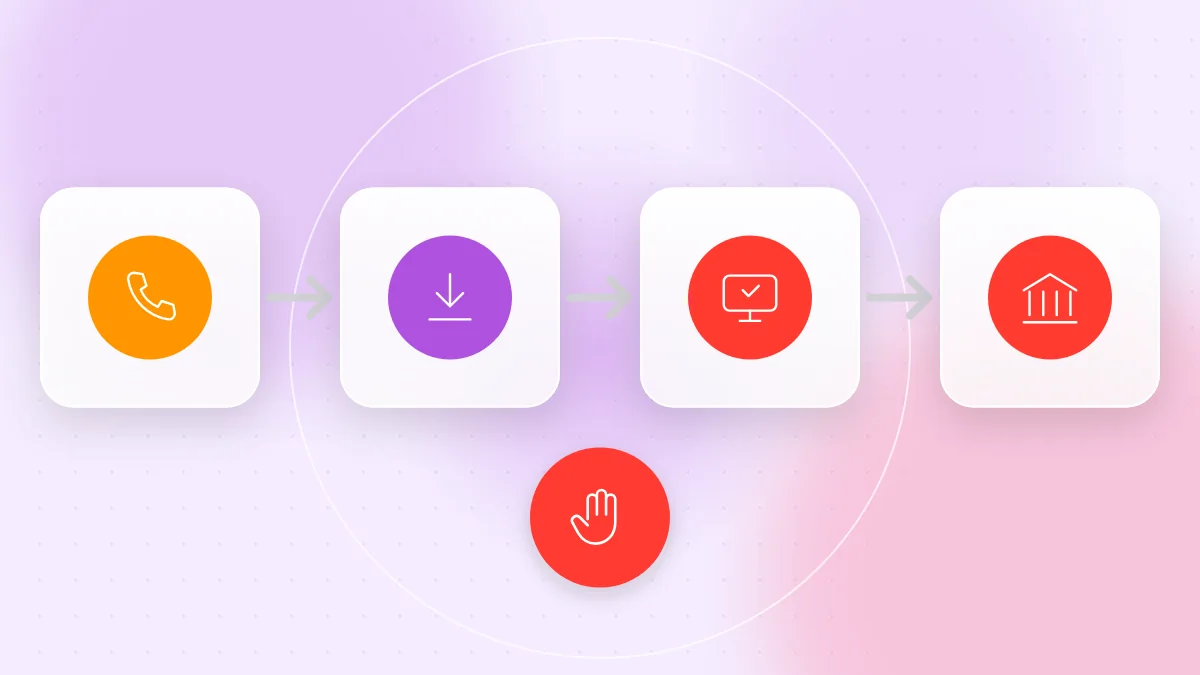
How the remote access scam works, step by step
The details vary by country, but the pattern is similar.
- The call. Someone claims to be from your bank, the tax office, the electricity company, a government department, a delivery company, the police or tech support.
- The problem. Something urgent: a refund waiting for you, an unpaid bill, a parcel held at customs, suspicious activity on your account or a penalty if you do not act today.
- The link. The caller asks you to add them in a chat app, then sends a link or QR code for the "official app", a "government app" or a "support tool".
- The install. A website that looks official asks you to download an app. On Android this is often an app file from outside Google Play, and you are guided to allow "install unknown apps". Sometimes it is a real screen-sharing app from an official store, used for a criminal purpose.
- The permissions. You are told to tap "allow" several times, especially for accessibility access or screen sharing. This is what gives them control.
- Keeping you busy. You are asked to keep the call open, enter your PIN "to verify" or open your banking app "to check your balance", while they watch your screen.
- The theft. They transfer money, sometimes while your screen shows a fake "please wait" or "system update" message.
Warning signs you are being targeted
Watch the caller's behaviour, not the app.
- Urgency or fear, such as "Your account will be frozen in one hour."
- A request to install an app, especially from a link or QR code in a chat app.
- A request to keep the call open, so you have no time to check.
- A request to turn on accessibility or screen sharing.
- A request for codes, PINs or passwords.
- Unusual payments, such as moving money to a "safe account" or paying a fee to receive a refund.
- Anger or pressure when you say you want to call back.
One sign is enough reason to end the call.
The golden rule: hang up and call back yourself
- Say "I will call back" and end the call.
- Ignore any number, link or QR code the caller gave you.
- Find the official number yourself: on your bank card, a printed bill, the official app you already have or the organization's website.
- Call that number and ask whether there is really a problem.
Caller ID can be faked, so a familiar name on your screen proves nothing.
What real organizations never do
Legitimate banks, government offices, utility companies and delivery companies never:
- ask you to install an app from a link or QR code sent in a chat message;
- ask you to turn on accessibility, screen sharing or remote control during an unexpected call;
- ask for your PIN, password or one-time codes;
- ask you to move money to a "safe account";
- threaten arrest over the phone and demand payment the same day.
Official apps come from the App Store or Google Play, installed by you when you choose. Our guide on how to spot fake apps explains how to check the developer and other clues.
If it already happened: what to do right now
Speed matters most. Follow these steps in order.
1. Cut the connection
End the call and turn on airplane mode, or turn off both Wi-Fi and mobile data. This stops the scammer from seeing or controlling the phone.
2. Call your bank's official hotline
Use the number on your card or the bank's official website. Ask them to freeze your accounts and block your cards, even if you are not sure money was taken.
3. Remove the app
- Uninstall the app the scammer asked you to install.
- On Android, check accessibility settings and device admin apps, and turn off anything you do not recognize. An app that refuses to uninstall may need its device admin rights removed first.
- On iPhone, delete the app and make sure screen sharing has stopped.
- If you are unsure the phone is clean, back up your photos and do a factory reset. Our guide on phone virus signs and removal explains the options.
4. Secure your accounts
From a trusted device, change the passwords for banking, email and any account you used while the app was installed. Make sure two-factor authentication is on.
5. Report it
Report the case to the police and keep the report number. Save screenshots of the chat, the phone numbers and the link as evidence.
Protecting elderly parents and relatives
Older relatives are often targeted because they trust official-sounding callers. A short conversation helps.
- Teach one rule: "If anyone calls and asks you to install something, hang up and call me."
- Write down official numbers for their bank and important offices, and keep the list next to the phone.
- Limit app installs. On Android, keep "install unknown apps" off. On iPhone and Android, family settings can require approval for new apps.
- Check their phone together every few months, including which apps have accessibility access. Our app permissions guide shows what to look for.
- Make it safe to ask. Promise you will never be angry if they call to check.
Quick checklist
- Never install an app because an unexpected caller asked you to.
- Never turn on accessibility, screen sharing or remote control for a caller.
- Never share PINs, passwords or one-time codes.
- Hang up and call the official number yourself.
- Ignore links and QR codes from unknown contacts in chat apps.
- Keep "install unknown apps" turned off on Android.
- If something went wrong, switch on airplane mode and call your bank immediately.
- Report the scam to the police.
- Share these rules with older relatives.
FAQ
Can someone control my phone just by calling me?
No. They need you to install an app, allow permissions such as accessibility or screen sharing, or share your codes.
Is screen sharing on iPhone safe from remote access scams?
An iPhone does not let ordinary apps fully control the phone, but screen sharing still shows the other person everything on your screen, including codes and banking details.
What is a fake government app scam?
It is a remote access scam in which the caller pretends to be a government office, such as a tax department, and sends a link to a fake "official" app that gives them access to your phone and bank apps.
Will my bank refund the money?
It depends on your country and your bank's rules. Your chances are better if you call the bank's official hotline immediately and report to the police quickly.
Scammers often send links and QR codes through chat apps, so you can scan a QR code online with QR-TH to see the full link before opening it. And whenever a stranger asks you to install an app, simply hang up.