Learn how to spot fake apps in app stores, APK files sent by chat or SMS, fake update pop-ups and iPhone profiles, and what to do if you installed one.
📑 In this guide
- Copycat apps in official stores
- APK files sent by chat, SMS or QR code
- Fake update pop-ups and "unknown sources" warnings
- Fake update messages
- The "install unknown apps" warning on Android
- iPhone tricks: configuration profiles and enterprise apps
- What to do if you installed a fake app
- Quick checklist
- FAQ
- Can fake apps get into Google Play or the App Store?
- Is it safe to install an APK file?
- How can I tell if an app is safe?
- Can an iPhone get a fake app?
To spot fake apps, check who made the app, how long it has been around and whether its reviews look real, and never install an app from a file someone sends you in a chat, SMS or QR code. Most malicious apps either copy a well-known app in an official store or arrive as a direct download with an urgent story attached. If an app reaches you through a message rather than through your own search in Google Play or the App Store, treat it as a warning sign.
This matters because a malicious app can read your messages, including one-time codes from your bank, show fake login screens or even let a criminal control your screen. One wrong install can lead to an emptied bank account and stolen accounts. A few simple checks stop almost all of these tricks.
Copycat apps in official stores
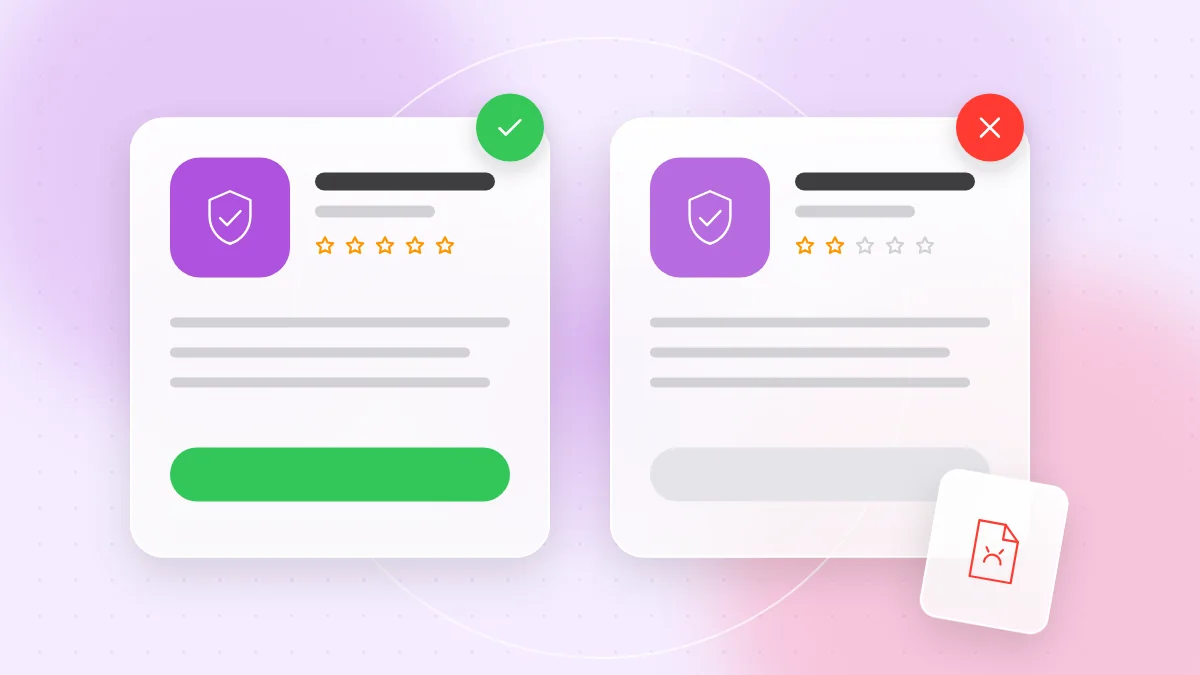
Google Play and the App Store review apps, but some fakes still get through for a while. They copy the name and icon of a popular app, such as a bank, a delivery service or a government service.
Before you tap Install, check these details:
- Developer name. Compare it with the official website of the company. A bank's app should be published by the bank itself, not by a person or a company with a similar name.
- Name and icon. Look for small differences: an extra word such as "Pro" or "Plus", spelling mistakes, or a slightly blurry icon.
- Install count compared with reviews. A real app for a large bank usually has many downloads and a long review history. A copycat often has few downloads but many five-star reviews.
- Recent reviews. Sort by newest. Short, generic praise posted on the same few days is suspicious, and complaints such as "this is not the real app" are a clear warning.
- Permissions. If a simple tool wants your SMS messages, contacts or accessibility features, ask why. Our app permissions guide explains which ones are risky.
The safest habit is to follow the store link on the official website of the bank or service, instead of tapping the first search result, which may be an ad.
APK files sent by chat, SMS or QR code
This is one of the most common phone scams today, especially on Android. Someone pretending to be a bank, a tax office, a delivery service or the police contacts you with an urgent story:
- "Install this app to receive your refund."
- "Pay your traffic fine through this app before it doubles."
- "Your parcel is held. Install our tracking app to reschedule delivery."
The "app" is an APK file (an Android app installer) sent as a link, a chat attachment or a QR code. Once installed, it asks for accessibility access or SMS access, which lets criminals read your bank codes and watch your screen.
Remember one simple rule: real banks and government offices do not send app files through chat apps or SMS. If you get such a request, hang up, close the chat and contact the organisation through its official phone number.
If the link arrived as a QR code, you can scan a QR code online to see the full address before opening it. A link ending in ".apk", or a page that immediately starts a download, is a strong sign of a scam.
Fake update pop-ups and "unknown sources" warnings
Fake update messages
Pop-ups saying "Your browser is out of date" or "Your phone is infected" are not real system messages. Real updates come from your phone's Settings, the App Store or Google Play. Close the page.
The "install unknown apps" warning on Android
Android blocks installs from outside Google Play by default. To install an APK, you must allow a specific app, such as your browser or a chat app, to "install unknown apps", and Android shows a warning. Google Play Protect may also warn that an app is harmful.
Take these warnings seriously. If someone on the phone is guiding you through turning this setting on, stop: that is exactly what scammers do. If you allowed it in the past, search Settings for "install unknown apps" and turn it off.
iPhone tricks: configuration profiles and enterprise apps
- Configuration profiles. A website may ask you to download a "profile" for free Wi-Fi, a prize or a "security certificate". A malicious profile can route your traffic through the attacker. Check Settings > General > VPN & Device Management. If you see a profile you don't recognise and your employer or school did not install it, remove it.
- Enterprise and test apps. Companies can install internal apps without the App Store, and developers can invite people to test apps. Scammers abuse this for fake investment and banking apps. If you are asked to "trust" a developer in your settings before an app will open, or to install a "beta version" of a trading app, it is almost certainly a scam.
Outside of work or school, an ordinary iPhone user should not need either of these.
What to do if you installed a fake app
- Disconnect. Turn on airplane mode so the app cannot send data or receive commands.
- Remove special rights. On Android, check "device admin apps" (often under Security) and accessibility settings, and turn off anything you don't recognise. Otherwise the app may refuse to uninstall.
- Uninstall the app. On Android, if it still won't go, restart in safe mode and try again. On iPhone, delete the app and any unknown profile.
- Call your bank. Use the number on your card and ask them to check transactions and block access if needed.
- Change your passwords from another device. Start with email, banking and social media. Turn on two-factor authentication where you haven't yet.
- Scan and watch. Run Google Play Protect on Android, install updates and check the signs in our phone virus signs guide. If problems continue, back up your photos and do a factory reset.
Quick checklist
- Install apps only from Google Play or the App Store, never from a file sent in a chat, SMS or QR code.
- Check the developer name against the organisation's official website.
- Compare the install count with the number of reviews, and read the newest reviews.
- Be suspicious of any app that promises a refund, a parcel update or a lower fine.
- Keep "install unknown apps" turned off on Android.
- Ignore pop-ups that ask you to install an update from a website.
- On iPhone, never install a profile or "trust" a developer unless your employer or school asked you to.
- If you installed something suspicious, disconnect, uninstall, call your bank and change passwords from another device.
FAQ
Can fake apps get into Google Play or the App Store?
Yes, sometimes, although both stores remove fakes when they find them. Checking the developer name, install count and recent reviews helps you catch them.
Is it safe to install an APK file?
Only if you are completely sure where it comes from. An APK sent by someone claiming to be a bank, a government office or a delivery company is a scam.
How can I tell if an app is safe?
Ask: is it in the official store, is the developer the real company, do the reviews look natural, and do the permissions make sense? If any answer is no, don't install it.
Can an iPhone get a fake app?
Yes. Copycats occasionally appear in the App Store, and scammers use profiles, enterprise apps and test invitations to bypass it.
Most fake apps reach people through a link or QR code in an urgent message. Before you open one, check where it really leads with QR-TH's free online QR scanner, and if the address ends in ".apk", stop there.