Is a QR code scanner app safe? Learn why your phone camera is often enough, which permissions a scanner needs, and what to do if you installed a bad one.
📑 In this guide
- Do you need a QR code scanner app at all?
- What can go wrong with third-party QR reader apps
- Which permissions does a QR scanner really need?
- How to choose a safe scanner app (if you need one)
- Make preview-before-open a habit
- Scanning QR codes from screenshots and images
- What to do if you installed a bad scanner app
- Quick checklist
- FAQ
- Is it safe to scan a QR code with the camera app?
- Can a QR code scanner app steal my data?
- Why does my QR scanner app ask for my location?
- Can I scan a QR code without installing an app?
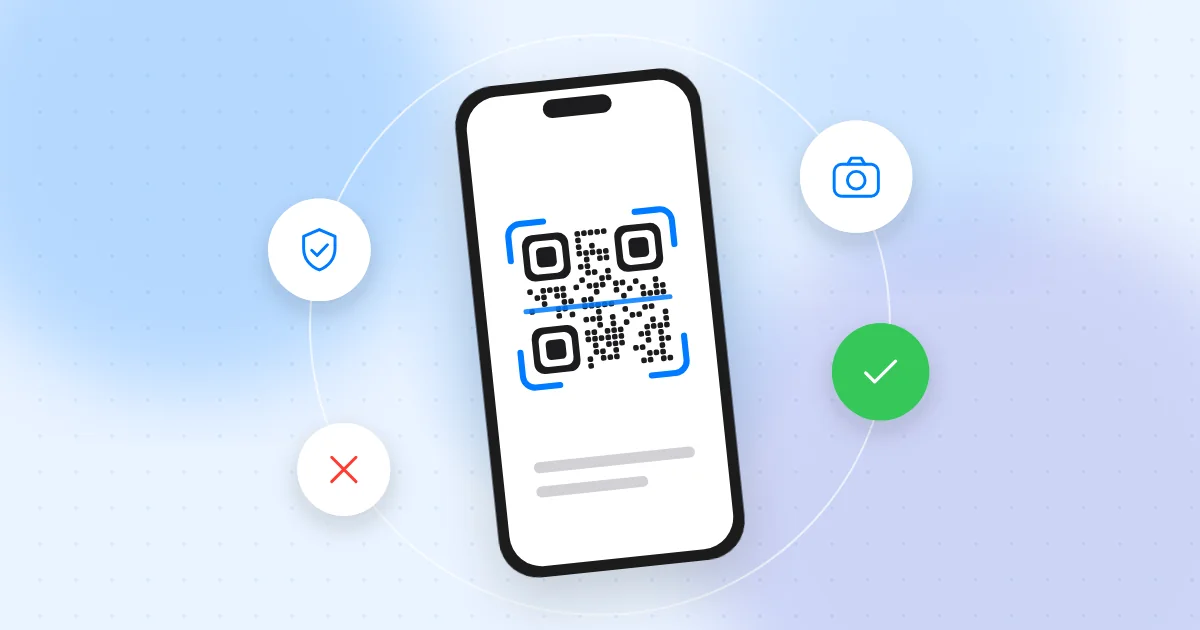
A QR code scanner app is safe only when it does one simple job: it reads the code, shows you what is inside and lets you decide what to do next. Most people don't need a separate app at all, because the built-in camera on modern iPhones and Android phones already scans QR codes. Many third-party "QR reader" apps ask for far more than they need, show aggressive ads or collect data about you.
This matters because a scanner sits between you and every link, payment request and Wi-Fi network you scan. A dishonest app can track you, push misleading ads or open a dangerous website before you have a chance to look. With your banking, email and photos on the same phone, it is worth a few minutes to get this right.
Do you need a QR code scanner app at all?
For most people, no. Phones have scanned QR codes without an extra app for several years.
- iPhone: open the Camera app and point it at the code. A small button appears with the link. You can also add a Code Scanner control to Control Center. If nothing happens, check that QR scanning is turned on in Settings > Camera.
- Android: open the default Camera app and point it at the code. Many phones also have a QR scanner tile in Quick Settings. If your camera doesn't react, try Google Lens, which is built into many Android phones.
Menus differ between phone makers and versions, so if you can't find an option, search for "QR" in Settings. If the built-in tools work for you, you can skip third-party scanners and avoid a whole category of risk.
What can go wrong with third-party QR reader apps
Not every scanner app is harmful. But a simple scanner is easy to build and easy to fill with ads and tracking, so the category has many weak apps. Common problems:
- Excessive permissions: location, contacts, call logs, SMS or files, none of which a scanner needs.
- Aggressive ads: full-screen ads after every scan, fake "virus detected" warnings, or ads that look like the scan result.
- Tracking: recording every code you scan with your location and device details, and sharing it with advertisers.
- Auto-opening links: jumping straight to a website or a download without showing you the address first.
- Fake apps: apps built to show ads, install other apps or steal data. Some behave normally at first and change after an update.
- Paid traps: subscriptions for basic features your camera already offers.
Our guide on how to spot fake apps covers the general warning signs.
Which permissions does a QR scanner really need?
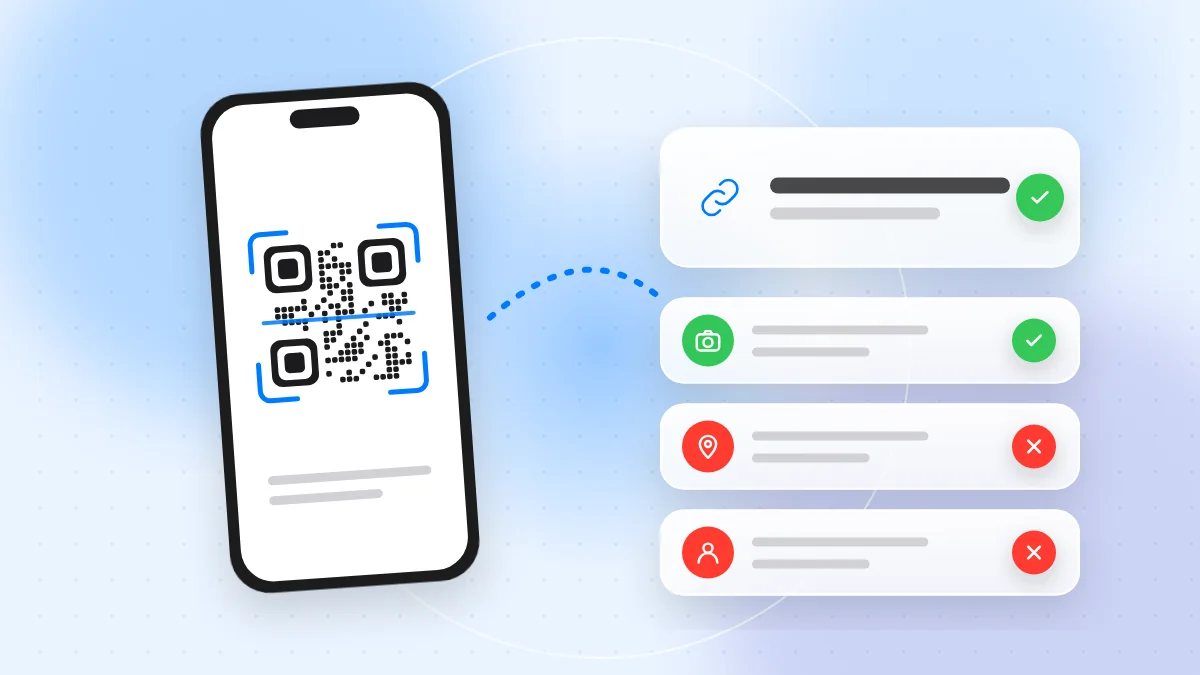
A scanner needs camera access, ideally only while you are using the app. If you want to scan codes from saved images, it may also need photo access. Choose limited or selected-photo access where your phone offers it, instead of your whole library.
Be suspicious if a scanner asks for:
- Location, especially "always" or in the background
- Contacts, call logs or SMS messages
- Microphone
- Accessibility or device-admin rights on Android
- Permission to install other apps or to display over other apps
On both iPhone and Android you can review permissions in Settings, usually under Privacy or Apps. Our app permissions guide explains how to turn them off.
How to choose a safe scanner app (if you need one)
A separate app can be useful on an older phone, or if you need scan history or batch scanning for work. If so:
- Install only from Google Play or the App Store, never from a link, a pop-up or a QR code.
- Check the developer: their name, other apps and privacy policy.
- Read the store's data and privacy section. A scanner that collects location, contacts or advertising identifiers deserves a second thought.
- Read recent reviews, looking for complaints about ads, sudden subscription prompts or changes after an update.
- Check permissions after installing. If the app wants more than the camera (and optionally photos), deny it or uninstall.
- Prefer apps that show a preview and wait for you to tap "Open".
To avoid installing anything, QR-TH's free online QR scanner lets you scan or upload a code and see the full link before you open it.
Make preview-before-open a habit
Whatever tool you use, read before you tap. A QR code is just text, and it can be a website, a payment request, a Wi-Fi login, a phone number or a pre-written message.
- Read the full web address and check the domain for misspellings or extra words. Short links hide the real address, so take more care with them.
- Check the action. Sending an SMS, calling a number or joining a Wi-Fi network should match what you expected.
- Don't sign in or pay from a scanned page. Open the official app or type the website address yourself instead.
- Don't install apps from a QR code. Search the official store instead.
Our checklist Is this QR code safe? gives ten quick checks.
Scanning QR codes from screenshots and images
If the code is already on your screen, in an email, chat or photo, you don't need a special app:
- iPhone: open the image in Photos. On recent iOS versions you can touch and hold the QR code, or use text and image recognition, to see the link.
- Android: open the image in your gallery or Google Photos and tap the Lens button.
- Any device: upload the image to an online scanner that shows the decoded content first.
Codes that arrive by email or message deserve extra care, because scammers use them to get around email link filters.
What to do if you installed a bad scanner app
If your scanner shows constant ads, opens websites by itself or asked for permissions it shouldn't have:
- Uninstall it. On Android, if uninstall is greyed out, remove its device-admin or accessibility rights in Settings first.
- Look for unfamiliar apps installed around the same time and remove them.
- Run a security check. On Android, use Google Play Protect, and keep your system updated on both platforms.
- Change passwords you typed on any page the app opened, and turn on two-factor authentication.
- Check your statements for unfamiliar payments, and cancel any subscription the app started.
If problems continue, see our guide to phone virus signs and removal.
Quick checklist
- Try your phone's built-in camera before installing any scanner.
- Install scanner apps only from Google Play or the App Store.
- Check the developer, privacy details and recent reviews.
- Allow camera access, plus limited photo access only if needed.
- Deny location, contacts, SMS, microphone and accessibility requests.
- Read the full link or action before you open it.
- Never pay, sign in or install apps from an unexpected scanned code.
- Remove any scanner that shows aggressive ads or opens links on its own.
FAQ
Is it safe to scan a QR code with the camera app?
Yes, the built-in camera on iPhone and Android is generally the safest choice, because it shows a preview before opening anything. The code itself can still lead to a scam, so read the link first.
Can a QR code scanner app steal my data?
A dishonest app can collect whatever you allow it to access, such as your location, scan history or contacts. Limiting it to the camera greatly reduces what it can take.
Why does my QR scanner app ask for my location?
Usually for ads or tracking, sometimes for features like recording where a code was scanned. You can deny it, and the scanner should still work.
Can I scan a QR code without installing an app?
Yes. Use your phone's camera, your gallery's image recognition for screenshots, or an online scanner in your browser.
The safest QR scanner is often the one already on your phone, combined with the habit of reading every link before you open it. When a code looks unfamiliar, you can check it first with QR-TH's free online scanner.