App permissions explained in plain language: what each one means, which are high-risk, and how to review them on Android and iPhone to protect your data.
📑 In this guide
- What the common permissions mean
- The high-risk permissions to watch closely
- Accessibility permission (Android)
- Device admin
- Display over other apps
- Install unknown apps
- Notification access and SMS
- Choose the smallest option: while using, approximate and one-time
- How to review app permissions on Android and iPhone
- Android
- iPhone
- Red flags: when a permission request does not make sense
- Quick checklist
- FAQ
- Is it safe to deny app permissions?
- Are Android app permissions riskier than iPhone ones?
- What is the most dangerous app permission?
- Should I check permissions after an app updates?
App permissions are the switches that decide what an app can use on your phone, such as your location, camera, microphone, contacts or photos. A good rule is simple: allow a permission only when it clearly matches what the app does, choose the smallest option offered, and be very careful with a few powerful permissions that can give an app control over your whole phone.
This matters because permissions are how an app gets your private data. A harmless-looking app with access to your SMS or notifications can read the one-time codes that protect your bank account. Other apps quietly collect your location, contacts or photos. A few minutes of review closes those doors.
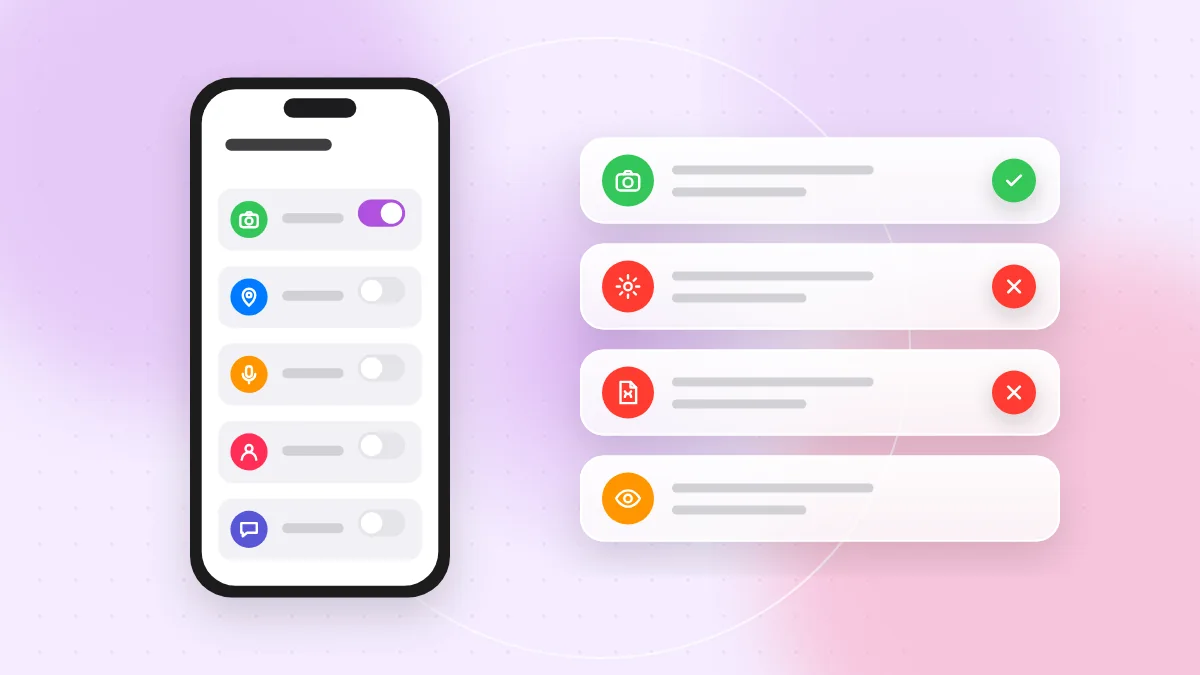
What the common permissions mean
Here is what each common permission opens, in plain words.
- Location: where your phone is. Maps and delivery apps need it; most others do not.
- Camera: taking photos and video, and scanning QR codes.
- Microphone: recording sound. Needed for calls and voice messages.
- Contacts: names, numbers and emails of everyone you know. This is data about other people too.
- Photos and videos: your picture library, often with private details such as places and faces.
- SMS (Android): reading and sending text messages, including codes sent by your bank. iPhone apps cannot read your text messages.
- Phone (Android): making calls, seeing your phone number and call status, and sometimes reading call logs.
- Notifications: permission to send you notifications. Low risk, but turning it off for noisy apps reduces fake alerts.
- Files and storage: documents and downloads. On Android, "all files access" is a broad special permission that most apps should not need.
- Bluetooth and nearby devices: connecting to headphones, watches and other devices close to you. It can also hint at where you are.
The high-risk permissions to watch closely
Some permissions are far more powerful than the ones above. On Android, many of them are not a simple pop-up; the app sends you to a settings screen and asks you to turn a switch on yourself. If an app or a caller pushes you to do this, slow down.
Accessibility permission (Android)
Accessibility services are designed to help people with disabilities. They let an app read everything on the screen and tap buttons for you. In the wrong hands, that means reading your banking app and approving actions in your name. Allow the accessibility permission only for apps you fully trust, and never because someone on the phone told you to. Our guide to remote access app scams explains how scammers use this trick.
Device admin
Device admin rights let an app lock the screen, change the screen lock or erase the phone, and they can make the app harder to uninstall. A game or a "cleaner" app never needs this.
Display over other apps
This lets an app draw on top of other apps. Malicious apps can use it to place a fake login screen over your real banking app.
Install unknown apps
This allows a specific app, such as a browser or chat app, to install other apps from outside Google Play. Leave it off, or turn it off again after a one-time install.
Notification access and SMS
Notification access is different from sending notifications: it lets an app read every notification you receive, including message previews and one-time codes. Usually only smartwatch apps and similar trusted tools need it. SMS access is risky for the same reason, because many services still send login codes by text message. Only your default messaging app normally needs it.
Choose the smallest option: while using, approximate and one-time
- Only while using the app: the app can use your location only while it is open on screen. "Always" is rarely needed.
- Approximate location: the app sees your general area, not your exact address. On iPhone, turn off "Precise Location"; on Android, choose "Approximate".
- One-time permission: "Allow once" on iPhone or "Only this time" on Android gives access for the current use only.
- Selected photos: share a few chosen pictures, not your whole library.
- Automatic reset on Android: Android can remove permissions from apps you have not used for a while. Leave this feature on.
How to review app permissions on Android and iPhone
Android
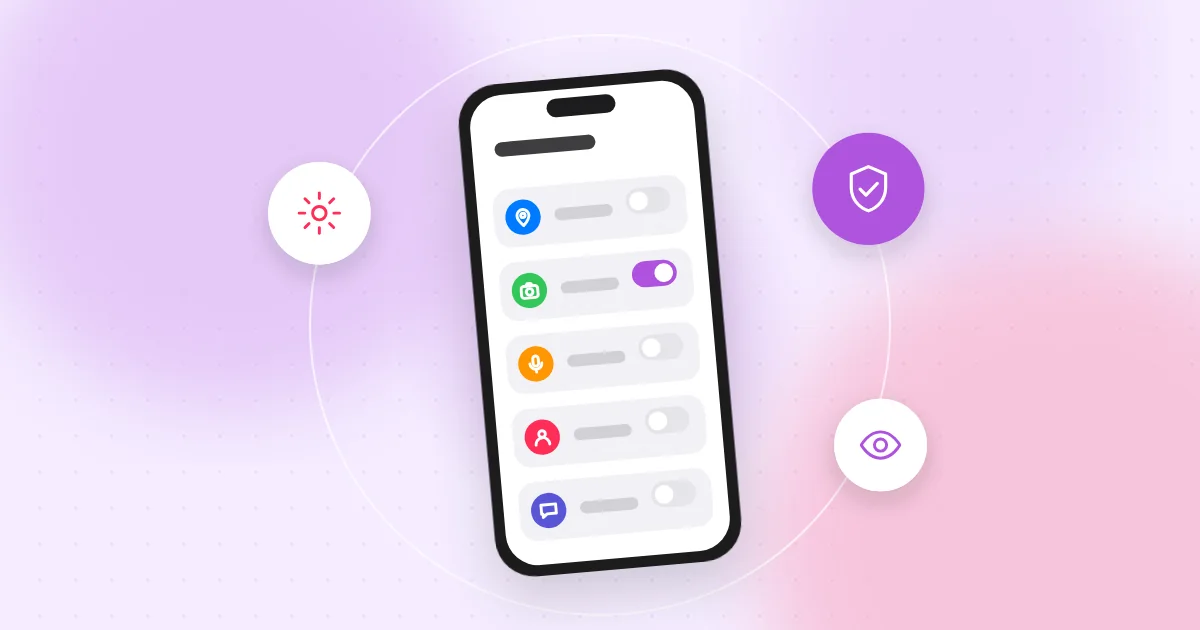
- Open Settings and look for Security and privacy or Privacy, then the Permission manager. It lists each permission type and which apps have it.
- Tap a permission, such as Location or Microphone, and change any app to "Allow only while using the app", "Ask every time" or "Don't allow".
- Open the Privacy dashboard to see which apps used location, camera and microphone recently.
- Check special permissions separately. In the apps section of Settings, look for "Special app access" to review accessibility, device admin apps, display over other apps, install unknown apps, notification access and all files access.
iPhone
- Open Settings > Privacy & Security. Each category, such as Location Services, Contacts, Photos, Microphone, Camera and Bluetooth, shows which apps have asked for it.
- Turn on the App Privacy Report to see how often apps used your data and sensors.
- Watch the colored dot at the top of the screen: green means the camera is in use, orange means the microphone. Android shows a similar indicator.
- Check for configuration profiles you did not install yourself, usually under General settings, and remove any you do not recognize.
Red flags: when a permission request does not make sense
The best test is to ask: "Why would this app need this?"
- A flashlight app asking for contacts or location.
- A simple game asking for SMS, call logs or phone access.
- A wallpaper or "phone booster" app asking for accessibility or device admin.
- A QR scanner asking for much more than the camera. Our QR scanner app safety guide explains what a scanner really needs.
- A message, website or caller guiding you step by step to turn on accessibility or install an app from a link.
If you see these signs, deny the request and consider deleting the app. Learn how to spot fake apps before installing. If an app already has powerful access and your phone behaves strangely, follow our guide to phone virus signs and removal.
Quick checklist
- Install apps only from Google Play or the App Store.
- Before allowing a permission, ask whether it matches what the app does.
- Choose "while using the app" instead of "always" for location.
- Use approximate location and selected photos where possible.
- Review the permission manager or Privacy & Security settings every few months.
- On Android, check special access: accessibility, device admin, display over other apps, install unknown apps and notification access.
- Never turn on accessibility or install an app because a caller or message told you to.
- Delete apps you no longer use.
FAQ
Is it safe to deny app permissions?
Yes. If an app needs a permission for a feature, it will ask again when you use that feature. Most apps keep working with fewer permissions than they request.
Are Android app permissions riskier than iPhone ones?
Android offers some powerful options that iPhone apps cannot get, such as reading SMS, accessibility services and installing apps from outside the store. Scammers target them, so they deserve extra care.
What is the most dangerous app permission?
On Android, the accessibility permission is one of the most powerful, because it lets an app read your screen and act for you. Device admin, notification access and SMS access follow close behind.
Should I check permissions after an app updates?
It is a good habit. Apps can ask for new permissions after an update, and you can review them at any time in your settings.
Checking app permissions takes a few minutes and protects your codes, contacts and location. When a QR code leads to an app download, you can first see the full link with QR-TH's free online QR scanner before opening it.