Router security made simple: change default passwords, update firmware, use WPA3, set up a guest network and protect smart cameras and other IoT devices.
📑 In this guide
- Lock down the router's admin settings
- Change the default admin password
- Update the firmware
- Replace a router that no longer gets updates
- Secure your Wi-Fi network
- Use WPA3 or WPA2 with a strong password
- Rename the network
- Turn off features you don't use
- Use a guest network for visitors and smart devices
- Smart home security: cameras, doorbells, TVs and plugs
- Accounts and passwords
- Updates and support
- Privacy settings and camera placement
- Signs that something is wrong
- Quick checklist
- FAQ
- How often should I update my router?
- Is WPA2 still safe for home Wi-Fi?
- Should I turn off UPnP on my router?
- Can someone hack my smart camera?
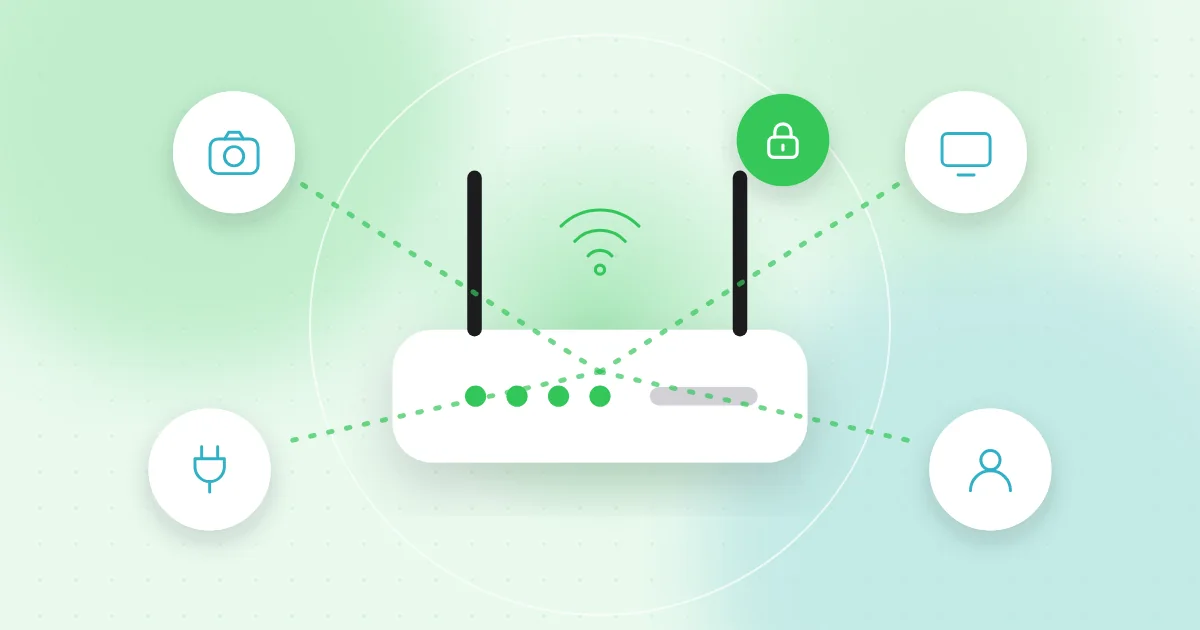
Good router security comes down to a few steps: change the router's default admin password, keep its firmware updated, use WPA3 or WPA2 with a strong Wi-Fi password, and turn off features you don't need, such as WPS and remote management. Then put visitors and smart devices on a guest network and give every camera, TV and plug its own strong password and regular updates.
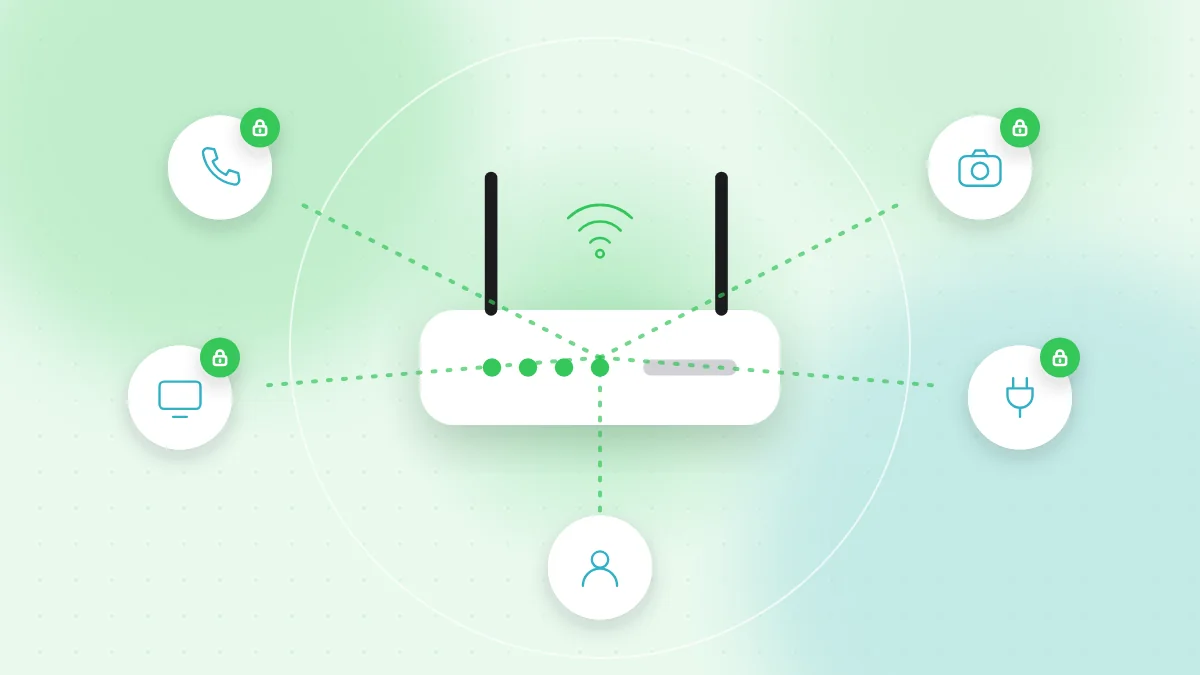
Your router is the front door of your home network. Your banking, email and the live picture from your baby monitor or doorbell camera all pass through it. If someone controls the router or a weak smart device, they may redirect you to fake websites or look into your home. Most of the protection takes less than an hour.
Lock down the router's admin settings
Every router has an admin page, opened in a web browser or the provider's app. The address and default login are often on a sticker on the router.
Change the default admin password
Default admin passwords are often simple and easy to look up. Change it to a long, unique password and store it in a password manager. Note that the admin password is different from the Wi-Fi password; change both.
Update the firmware
Firmware is the router's own software. Updates fix security weaknesses, but older routers often do not install them automatically.
- Turn on automatic updates if the router offers them.
- If not, check the firmware section every few months.
- Never download router firmware from links in emails or pop-ups. Use only the admin page or the maker's official website.
Replace a router that no longer gets updates
Routers have an end-of-life date, after which the maker stops releasing security fixes. If yours is more than about five to seven years old, or the maker lists it as no longer supported, plan to replace it. If your provider owns the router, ask them for a newer model.
Secure your Wi-Fi network
Use WPA3 or WPA2 with a strong password
In the wireless settings, choose WPA3 if all your devices support it, or the mixed WPA2/WPA3 mode if some older devices cannot connect. Never use WEP or an open network without a password.
A good Wi-Fi password is at least 12 to 15 characters long. A short sentence of random words is easy to type and hard to guess. Avoid your address, phone number or family names.
Rename the network
Change the default network name (SSID) to something neutral. Avoid your surname or flat number.
Turn off features you don't use
- WPS (Wi-Fi Protected Setup) lets devices join with a button or a short PIN. The PIN method in particular has known weaknesses. Turn WPS off if you can.
- Remote management lets someone open the admin page from the internet. Unless you really need it, switch it off so the router can only be managed from inside your home.
- UPnP lets devices open connections through the router automatically. Some games and video calls use it, but it can also expose devices to the internet. Turn it off and see if everything still works; switch it back on only if something important breaks.
Use a guest network for visitors and smart devices
Most modern routers can run a separate guest network. Devices on it can reach the internet but not your main phones and computers.
- Give visitors the guest network instead of your main password. Our guide on sharing Wi-Fi with a QR code shows an easy way to do this.
- Consider putting smart TVs, plugs, speakers and other smart home devices on a separate guest or IoT network as well. If one of them is weak, it is kept away from your laptop and phone.
- Make sure the guest network also has a strong password and uses WPA2 or WPA3.
Smart home security: cameras, doorbells, TVs and plugs
IoT security means protecting the "Internet of Things": every gadget that connects to the internet. These devices are small computers, and they need the same care as a phone.
Accounts and passwords
- Change any default password on the device during setup. Never keep a password like "admin" or "1234".
- Use a unique, strong password for the maker's app or cloud account, because that account often controls the camera.
- Turn on two-factor authentication for the vendor account. This is especially important for cameras, doorbells and baby monitors.
- Remove shared access you no longer need.
Updates and support
- Turn on automatic updates in the device's app.
- Before you buy, check that the maker promises security updates and says for how long. Very cheap devices from unknown sellers often get no updates at all.
- Replace or disconnect devices that no longer get updates.
Privacy settings and camera placement
Smart camera security is also about what the camera can see. Point indoor cameras away from bedrooms, bathrooms and spaces where guests expect privacy. Outdoor cameras should cover your own door or driveway, not your neighbours' windows. In the app, review who can view live video and how long recordings are kept. Turn off microphones, voice assistants and viewing-data sharing on smart TVs if you don't use them.
On your phone, check which permissions the device's app has. On both iPhone and Android you can do this under Settings > Privacy or the app's own permission list. Our app permissions guide explains what to allow.
Signs that something is wrong
Open the list of connected devices in your router's admin page or app every month or two. Watch for:
- Devices you don't recognise, especially ones that appear while you are away
- Router settings you did not change, such as a new DNS server or an open remote management option
- A sudden slowdown, or data use much higher than usual
- A camera that moves, speaks or turns its light on when nobody is using it
If you see these signs, change the router admin and Wi-Fi passwords, update the firmware and turn off remote management. If things still look strange, factory reset the router and set it up again with new passwords. Then change the password and check 2FA on any affected vendor account.
Quick checklist
- The router admin password is changed and stored in a password manager.
- Firmware is up to date, with automatic updates on where possible.
- Wi-Fi uses WPA3 or WPA2 with a long, unique password.
- WPS, remote management and UPnP are off unless you need them.
- Visitors and smart devices use a guest network.
- Every smart device has a unique password and current updates.
- Vendor accounts for cameras, doorbells and baby monitors have 2FA.
- The router's device list has been checked in the last two months.
- Routers and devices that no longer get updates are replaced.
FAQ
How often should I update my router?
Turn on automatic updates if your router has them. If not, check for new firmware every two to three months and whenever the maker or your internet provider announces a security fix.
Is WPA2 still safe for home Wi-Fi?
WPA2 with a strong, long password is still reasonable for most homes. Choose WPA3 or the mixed WPA2/WPA3 mode when your router and devices support it.
Should I turn off UPnP on my router?
If nothing you use needs it, yes, because it lets devices open connections without asking you. If a game console or app stops working, you can turn it back on.
Can someone hack my smart camera?
It is possible, most often through a reused or default password. A unique password, two-factor authentication on the vendor account and regular updates make it much harder.
A safe home network also starts with careful connections: smart devices are often set up by scanning a QR code, and Wi-Fi details are shared the same way. If a setup code or sticker looks unexpected, check where it leads first with QR-TH's free online QR scanner.