Learn how a password manager, long passphrases and passkeys stop password reuse attacks, plus how to check for leaked passwords and what to do after a breach.
📑 In this guide
- Why password reuse is the real danger
- What makes a strong password today
- How a password manager works and how to start
- Choose a password manager
- Set it up step by step
- Passkeys explained simply
- How to switch an account to a passkey
- Check for leaked passwords
- What to do after a data breach
- Quick checklist
- FAQ
- Is it safe to keep all my passwords in one password manager?
- What happens if I forget my master password?
- Do passkeys replace two-factor authentication?
- What if I lose my phone with my passkeys on it?
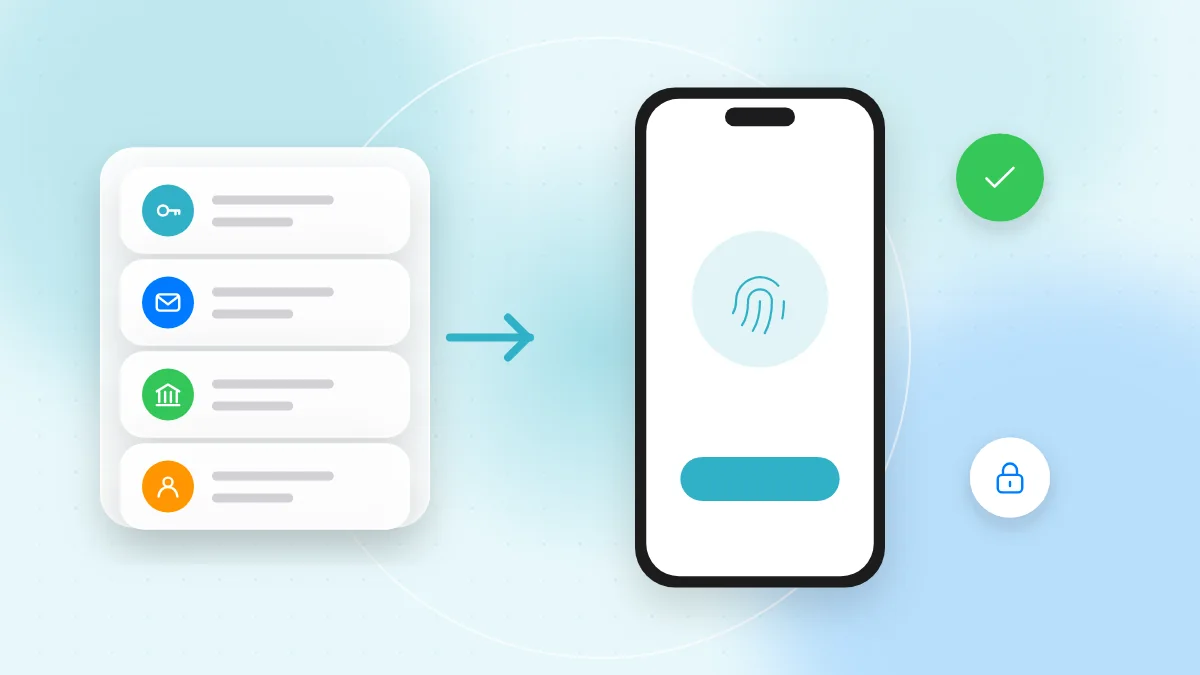
A password manager is an app that creates, stores and fills in a different strong password for every account, so you only have to remember one. Combined with passkeys, which let you sign in with your face, fingerprint or screen lock instead of a password, it removes the biggest everyday risk: using the same password in many places.
Your email, bank and social media accounts are protected mostly by passwords. If one is stolen, a criminal can read your messages, reset other accounts or spend your money. Fixing this takes less time than you might expect, and no technical skills.
Why password reuse is the real danger
Most people worry about someone guessing their password. The bigger problem is password reuse.
When a website is breached, lists of email addresses and passwords often end up shared online. Attackers use automated tools to try those same pairs on many other websites, such as email, banking and shopping services. This is called credential stuffing.
If your password leaked from a small online shop and you used it for your email too, the attacker can now get into your email, and from there reset almost everything else.
So every account needs its own password, and since nobody can remember dozens of them, that is what password managers are for.
What makes a strong password today
Length matters more than complexity. A long password is much harder to guess than a short one full of symbols.
- Use at least 12 to 16 characters, and longer for important accounts.
- Try a passphrase: four or more random, unrelated words, such as river-candle-orbit-pepper. It is long, easy to type and easy to remember.
- Avoid personal details like names, birthdays or phone numbers.
- Avoid common patterns such as "Password1!" or adding the year to an old password.
- Never reuse it. A strong password used on ten websites is only as safe as the weakest of them.
You only need to memorise a few: your phone unlock code, your main email password and your password manager's master password.
How a password manager works and how to start
A password manager keeps your passwords in an encrypted vault. The vault is locked with one master password, and often also with your fingerprint or face. It suggests new random passwords and fills in saved ones, but only on the real website it saved them for, which helps protect you from fake login pages.
Choose a password manager
- The built-in manager on your phone or browser. iPhone, Android, Windows, macOS and major browsers include one that can generate, save and sync passwords. This is the easiest place to start.
- A reputable independent password manager. These work across different platforms and browsers, which helps if you mix devices. Install it only from the App Store, Google Play or the developer's official website.
Set it up step by step
- Create one strong master password: a long passphrase you have never used anywhere else.
- Turn on two-factor authentication for the account that holds your passwords. Our two-factor authentication guide explains how.
- Set up recovery options, such as a recovery key or recovery contact, and keep them somewhere safe.
- Let the manager save passwords as you log in over the next few days.
- Replace passwords on your most important accounts first (email, banking, phone carrier, social media) using the manager's "generate password" option. A few accounts per week is fine.
Passkeys explained simply
So, what is a passkey? A passkey is a newer way to sign in that replaces the password completely. You confirm it is you the same way you unlock your phone or computer: with your face, fingerprint or PIN.
Behind the scenes, your device creates a pair of digital keys. The website keeps only the public part. The private part stays protected on your device or in your password manager and is never sent to the website. This means:
- Nothing to steal from the website. A breach leaks no password that could be reused.
- Phishing-resistant. A passkey only works on the real website it was created for, so a fake login page cannot trick you into handing it over.
- Synced across your devices. Passkeys saved in a built-in or independent password manager sync to your other devices signed in to it.
To sign in on a computer without your passkey, the website can show a QR code. You scan it with your phone and confirm; the phone must be physically nearby.
How to switch an account to a passkey
- Sign in to the account as usual and open its security or sign-in settings.
- Look for an option such as "Passkeys" or "Create a passkey".
- Confirm with your face, fingerprint or screen lock, and choose where to save it.
- Test it by signing out and signing in again with the passkey.
- Some services keep your password as a backup, so make sure it is still strong and unique.
Not every website supports passkeys yet, so use them where offered and a password manager for the rest.
Check for leaked passwords
Built-in password managers on iPhone, Android and major browsers, and most independent ones, include a password checkup or security recommendations feature. It warns you when a saved password:
- has appeared in a known data breach,
- is reused on several accounts, or
- is weak or easy to guess.
Open this section every few months and fix the warnings, starting with your most important accounts.
What to do after a data breach
If a service reports a breach or your password checkup warns you, act in this order:
- Change the password for that account, using a new one from your password manager.
- Change it anywhere else you reused it. This is where reuse causes the real damage.
- Turn on two-factor authentication or a passkey for that account if you have not already.
- Check the account for unfamiliar devices, forwarding rules or changed recovery details.
- Watch your bank statements if payment details may have been exposed, and contact your bank if anything looks wrong.
- Be extra careful with messages. Criminals often send fake "security alert" emails, texts or QR codes after a breach. Open the official app or type the address yourself instead of using links, and see our guide to QR code phishing emails.
Quick checklist
- Every important account has its own unique password.
- Your main passwords are long passphrases, not short complex words.
- You use a built-in or reputable independent password manager.
- The master password is strong and used nowhere else.
- Recovery options for the password manager are saved somewhere safe.
- Two-factor authentication protects your email and password manager.
- Passkeys are turned on for accounts that support them.
- You run a password checkup every few months.
FAQ
Is it safe to keep all my passwords in one password manager?
Yes, for most people it is much safer than reusing passwords. The vault is encrypted and locked with your master password, so protect it well and turn on two-factor authentication.
What happens if I forget my master password?
It depends on the manager. Many offer a recovery key or recovery contact, which is why you should set these up on day one.
Do passkeys replace two-factor authentication?
A passkey already combines two factors: something you have (your device) and something you are or know (your fingerprint, face or PIN). Many services therefore treat a passkey sign-in as strong enough on its own.
What if I lose my phone with my passkeys on it?
If your passkeys are synced through your password manager, they return when you sign in on a new device. Our mobile security tips explain what else to do if your phone is lost.
Unique passwords and passkeys stop most account takeovers, so set up your password manager this week, starting with your email. And when a "security alert" arrives with a QR code, check where it really leads with QR-TH's free online QR scanner before you open it.