Create a QR code menu in minutes: add your dishes and prices or upload your menu photos, preview it on a phone, publish it and print it for your tables.
📑 In this guide
A QR code menu lets guests read your menu on their own phone, and you can change prices without reprinting anything. In this guide you'll build a menu page for a café with the QR menu maker, check how it looks, publish it and print the QR for your tables. It takes about ten minutes, and you'll need your menu (typed out, or as photos or a PDF) and a free account to publish.
Build your menu page in 4 steps
1. Add your shop details
Open the QR menu maker, or go to Create, open Your business or Pages we host for you and tap Menu.
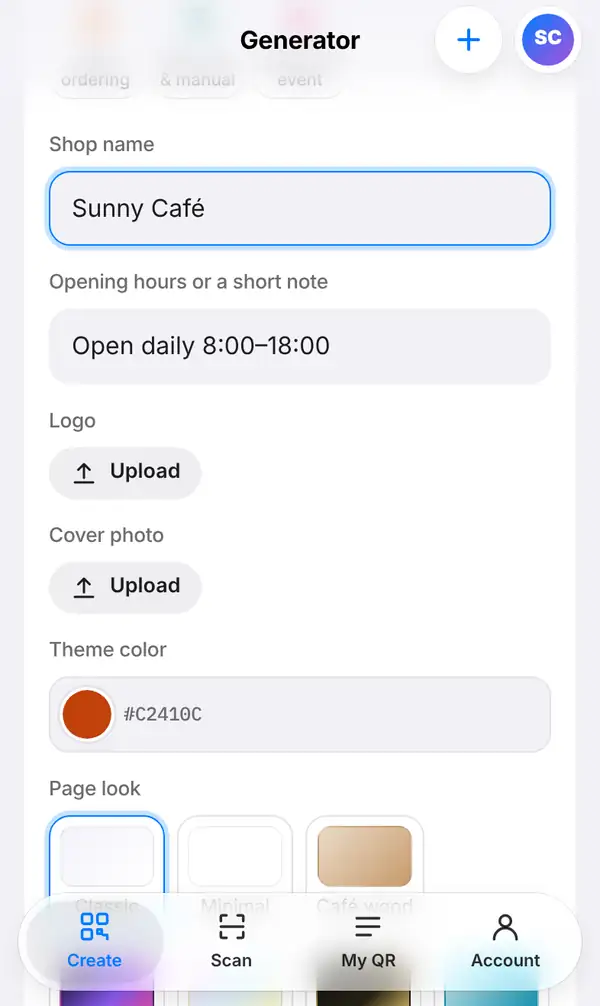
Fill in Shop name (for example "Sunny Café") and Opening hours or a short note, such as "Open daily 8:00–18:00". Then upload your Logo and a Cover photo if you have them. Pick a Theme color to match your brand and choose a Page look: classic, minimal, a warm café wood style, neon and more. You can change any of these later.
2. Add your dishes and prices
Now choose how to give guests your menu:
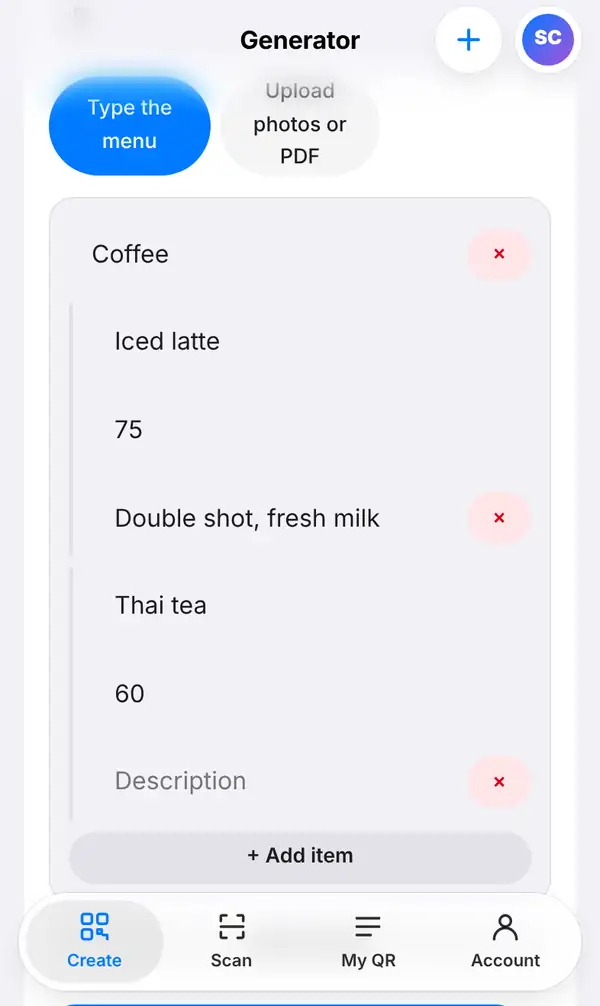
- Type the menu: add a section (such as "Coffee"), then each item with its name, price and a short description. Use Add item for more dishes and Add section for a new part of the menu, like "Cakes" or "Lunch".
- Upload photos or PDF: if you already have a printed menu, simply upload photos of it or a PDF file.
Expecting tourists? Under Menu in other languages you can add translations, and Add Chinese and translate automatically fills in a Chinese version for you. Always read the result before you save. Guests then see the menu in their phone's language and can switch with one tap.
3. Preview it like a guest
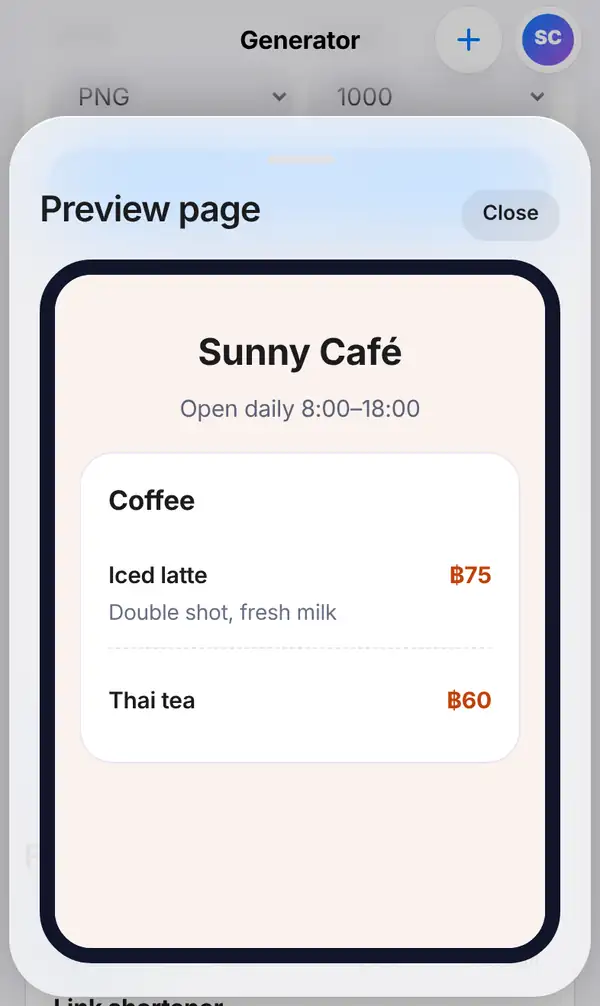
Press Preview page. You'll see your menu exactly as it will look on a guest's phone: your shop name, opening hours, sections, dishes and prices. Check the spelling and prices here, and that the colours are easy to read.
4. Publish and print
Press Publish page. This needs a free account, and it's the moment your QR code becomes real. Until you publish, the preview QR only points to a placeholder link, so don't print it before this step.
Once it's published, the menu is saved in My QR. You can press Design QR to add your colours and logo, then download the code or use Print-ready sign (PDF) to make a table card. Put one on every table, at the counter and by the door.
The best part: when a price changes or a dish sells out, just edit the menu and publish again. The printed QR codes stay the same.
Tips for a menu guests enjoy
- Keep descriptions short; people read menus on small screens.
- Put your most popular items in the first section.
- Test the printed code at the table, in your café's real lighting.
- Keep a few paper menus for guests who prefer them or whose phone is flat.
- On free accounts, hosted pages show a small "Made with QR-TH" badge; Pro and Business remove it. See pricing.
FAQ
Do guests need an app to open the menu?
No. They scan the code with their phone camera and the menu opens in the browser.
Can I change prices after printing?
Yes. Edit the menu and publish again. The QR code on your tables stays the same, so there's nothing to reprint.
Can I use my existing printed menu?
Yes. Choose Upload photos or PDF and upload pictures or a PDF of the menu you already have.
How many menus can I make?
That depends on your plan. A free account is enough to get started; see pricing for the details.
Make your QR menu now. For more ideas, read our guide to QR code menus for restaurants or learn how to design a QR code with your logo.