Scan a QR code with your camera or from a screenshot right in your browser. See where it leads before you open it, with no app to install and no upload.
📑 In this guide
Got a QR code in a screenshot, an email or on a poster, and want to see what's inside before you open it? You can scan it right in your browser, with no app to install. This guide shows you how with the online QR scanner. It takes seconds, and all you need is your phone or computer.
Scan a QR code in 3 steps
1. Use your camera or a picture
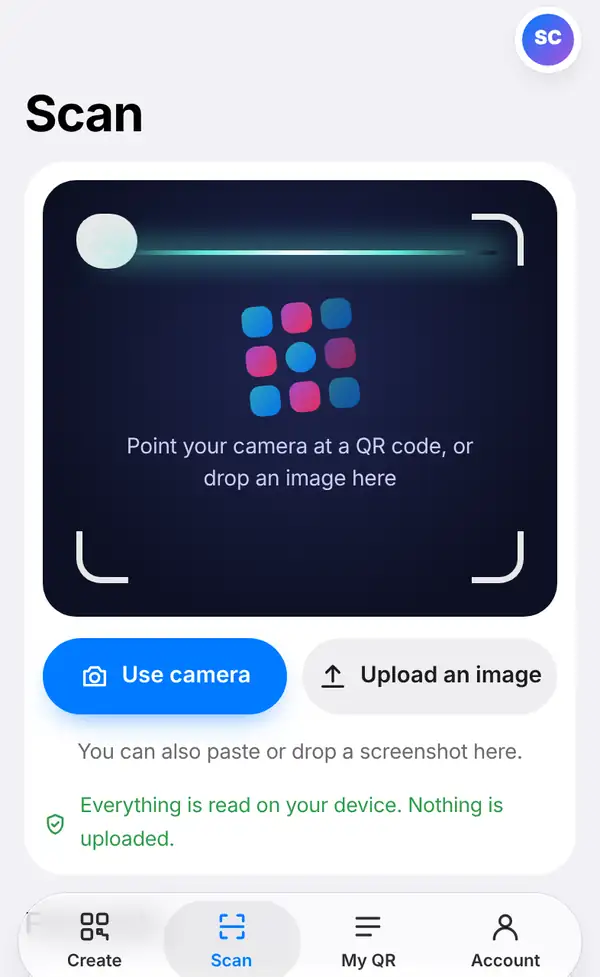
Open the online QR scanner, or tap the Scan tab at the bottom of the app. You have two choices:
- Use camera: point your phone or laptop camera at the QR code. The first time, your browser will ask for permission to use the camera.
- Upload an image: pick a photo or screenshot that has a QR code in it. On a computer you can also drag a picture onto the page or paste it.
Everything is read on your own device. Nothing is uploaded, so you can safely scan codes from private documents.
2. Read the result
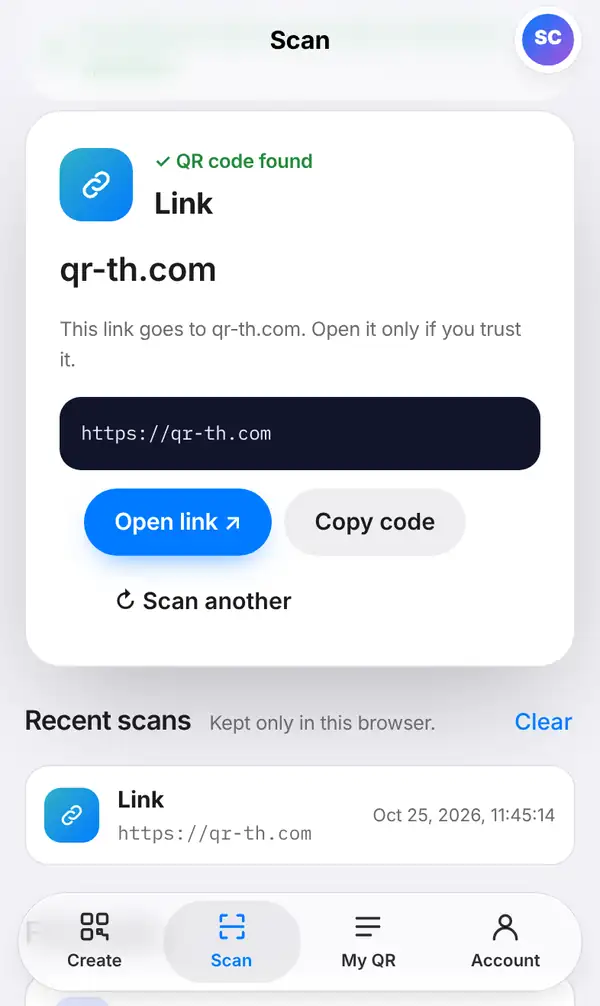
When a code is found, you'll see QR code found and what kind of code it is – a link, Wi-Fi details, a contact card and so on. For a link, the scanner shows the website's name and the full address, plus a short safety note.
From here you can press Open link to go to the page, Copy code to copy what's inside, or Scan another to start again.
Your Recent scans are listed below. They're kept in this browser only, and you can clear them whenever you like.
3. Check before you open
A QR code can hide any link, so take a moment before tapping:
- Read the domain: the website name should match who you expect. A bank's code should go to the bank's real website, not a look-alike with extra words or odd spellings.
- Watch out for stickers: on parking meters, posters and tables, scammers sometimes stick their own code over the real one. If the code looks stuck on, be careful.
- Never type passwords or card numbers on a page you reached from a stranger's QR code. If you need to log in, open the official app or type the address yourself.
Tips for scanning safely
- Use the scanner to preview codes from emails or messages you didn't expect.
- If a short link hides the real address, be extra careful about where it leads.
- Scan screenshots instead of pointing one phone at another; it's quicker.
- Read our guides on how to check a QR code is safe and QR code scams (quishing).
FAQ
Do I need to install an app?
No. The scanner works in your web browser on phones and computers.
Is my picture uploaded anywhere?
No. The code is read on your device, and the picture never leaves it.
Can I scan a QR code from a screenshot?
Yes. Press Upload an image and choose the screenshot. On a computer you can also drag or paste it onto the page.
Why won't my code scan?
Try better light, hold the camera steady, or move a little closer or further away. Blurry, very small or damaged codes can be hard to read.
Scan a QR code now. Related: how to check a QR code is safe and QR code scams (quishing).