Add your logo, brand colours, dot styles and a "Scan me" frame to any QR code – and keep it easy to scan. A step-by-step guide to the Design QR panel.
📑 In this guide
- Design your QR code in 4 steps
- 1. Open the design panel and choose a style
- 2. Add your logo
- 3. Add a frame
- 4. Fine-tune and check it scans
- Design tips that keep codes scannable
- FAQ
- Will a logo stop my QR code from working?
- Can I use any colours?
- Does designing the code cost anything?
- Can I change the design after printing?
A plain black-and-white QR code works, but one in your colours with your logo looks professional and gets noticed. In this guide you'll design a QR code with the Design QR panel on the QR-TH generator: colours, dot shapes, your logo, a frame – and then check it still scans well. It takes about five minutes. You'll need a QR code already made (see how to create a QR code) and, ideally, your logo as a PNG, JPG or SVG file.
Design your QR code in 4 steps
1. Open the design panel and choose a style
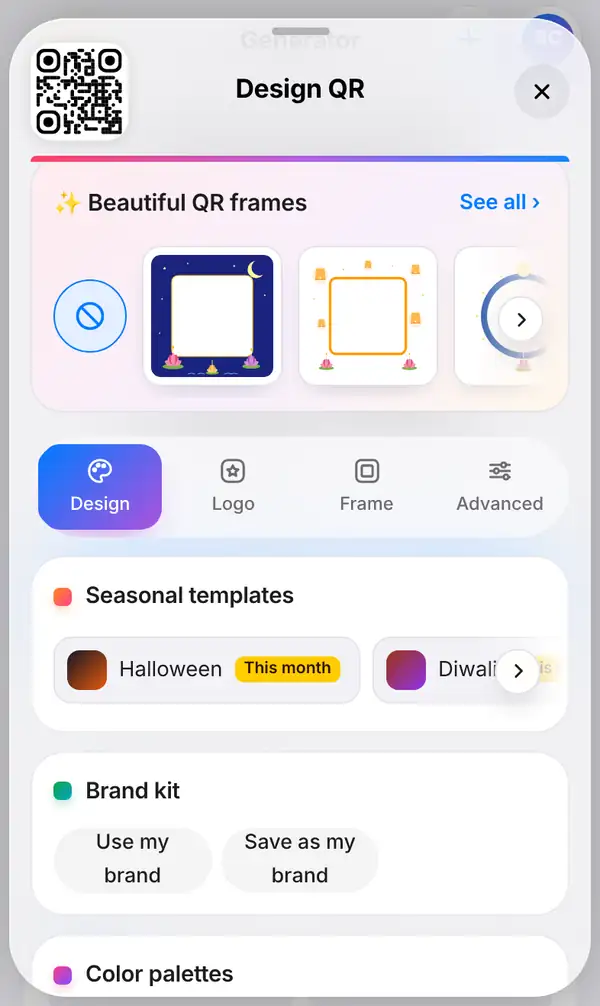
Make any QR code, then press Design QR under the preview. A panel slides up from the bottom of the screen. Your QR code stays in view at the top and changes as you try things, so you see every choice straight away. Drag the panel up if you want it to fill the screen.
At the top there's a row of festive frames for the season – tap one to try it, or tap the "no" circle to go without. Below them are four tabs. On the Design tab you can choose:
- the shape of the dots and of the three corner squares;
- colours, including gradients;
- the background colour.
Not sure where to start? Press Surprise me for a random design. Press again until something catches your eye, then fine-tune it.
2. Add your logo
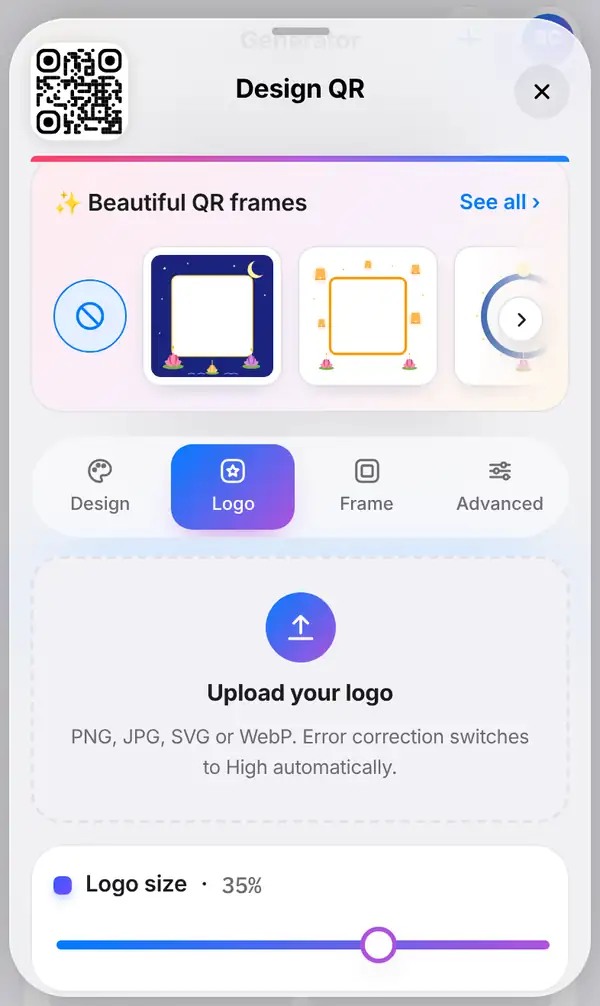
Open the Logo tab and upload your logo (PNG, JPG or SVG). It's placed in the middle of the code, and QR-TH keeps a clear space around it so the dots underneath don't clash with it.
You can also use colours from your logo for the QR code itself, which is a quick way to make the whole design match your brand.
3. Add a frame
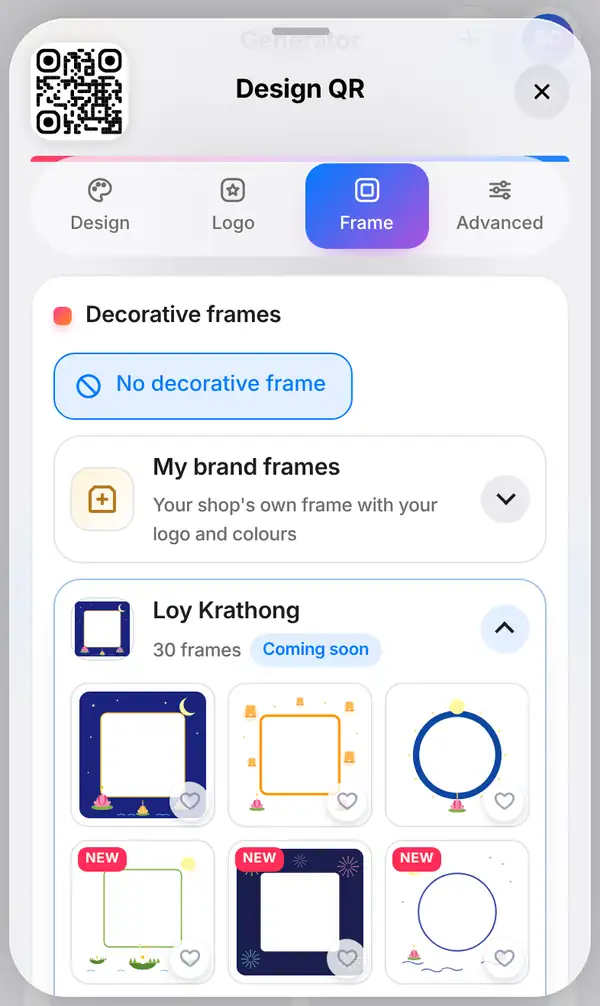
Open the Frame tab. A frame puts a border around your code, often with a short call to action such as "Scan me" or "Menu", which tells people why they should scan it. You'll also find stickers to decorate the design.
Pro and Business accounts can create My brand frames: your own frame with your logo and brand colours, ready to reuse on every code. See pricing for details.
4. Fine-tune and check it scans
The Advanced tab is for the technical settings: the error correction level (how much of the code can be covered or damaged and still be read), the margin around the code, and the size.
When you're happy, close the panel and look at the Scan check row under the preview. Green means the code is easy to read. If the score drops, it's usually for one of these reasons:
- the colours are too similar – keep dark dots on a light background;
- the logo is too large – make it smaller;
- the dots are too fancy – try a simpler shape.
Finally, test the code with two different phones before you print.
Design tips that keep codes scannable
- Contrast matters most: dark on light always works best.
- Don't make the QR code light and the background dark; some phones struggle with inverted codes.
- Keep the logo small and simple; a bold icon works better than a detailed picture.
- Leave the margin around the code clear of text and pictures.
- Our guides to QR code design best practices and error correction go deeper.
FAQ
Will a logo stop my QR code from working?
Not if it's a sensible size. QR codes have built-in error correction, and QR-TH keeps a clear area around the logo. Check the Scan check row and test with your phone.
Can I use any colours?
Yes, as long as there's strong contrast between the dots and the background. Very light dots or a busy background make codes hard to scan.
Does designing the code cost anything?
No. Colours, dot styles, logos and frames are free. Your own brand frames need a Pro or Business plan.
Can I change the design after printing?
The design is part of the printed image, so a new design means a new print. For a dynamic code, though, you can change where it leads without reprinting.
Design your QR code now. Related: how to create a QR code and QR code design best practices.