Create a free link in bio page at qr-th.com/@yourname: pick a name and template, add links, videos and opening hours, then share it or print its QR code.
📑 In this guide
- Create your Bio page in 4 steps
- 1. Choose your page name
- 2. Pick a template
- 3. Add your content and style
- 4. Share your page
- Tips for a page that gets clicks
- FAQ
- Is a Bio page free?
- Can I change my page after I've shared it?
- Can I see who clicks my links?
- What's the difference between a Bio page and a short link?
A Bio page gathers all your links in one place – your shop, menu, socials, videos and contact details – at a short address like qr-th.com/@yourname. In this guide you'll create one, choose a template, add your content and share it. It takes about ten minutes, and you'll need a free account. You can read more about Bio pages here.
Create your Bio page in 4 steps
1. Choose your page name
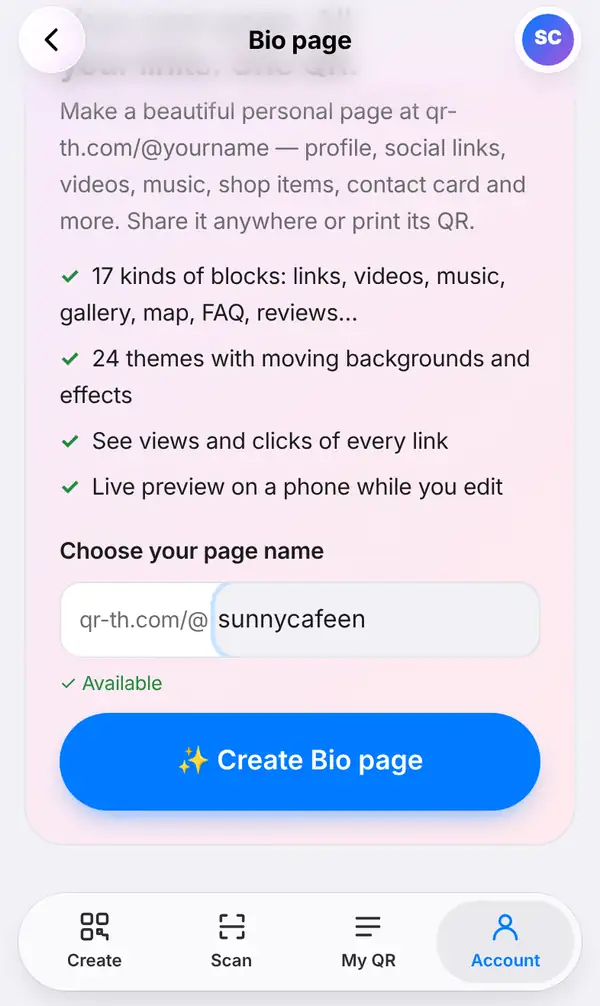
Sign in, open the Account tab and choose Bio page. Under Choose your page name, type the name you want after qr-th.com/@. You can use a–z, 0–9, dots, dashes and underscores, between 3 and 30 characters. A green Available note appears under the box to show the name is free. Then press Create Bio page.
Pick something short and easy to say out loud, such as your shop or brand name.
2. Pick a template
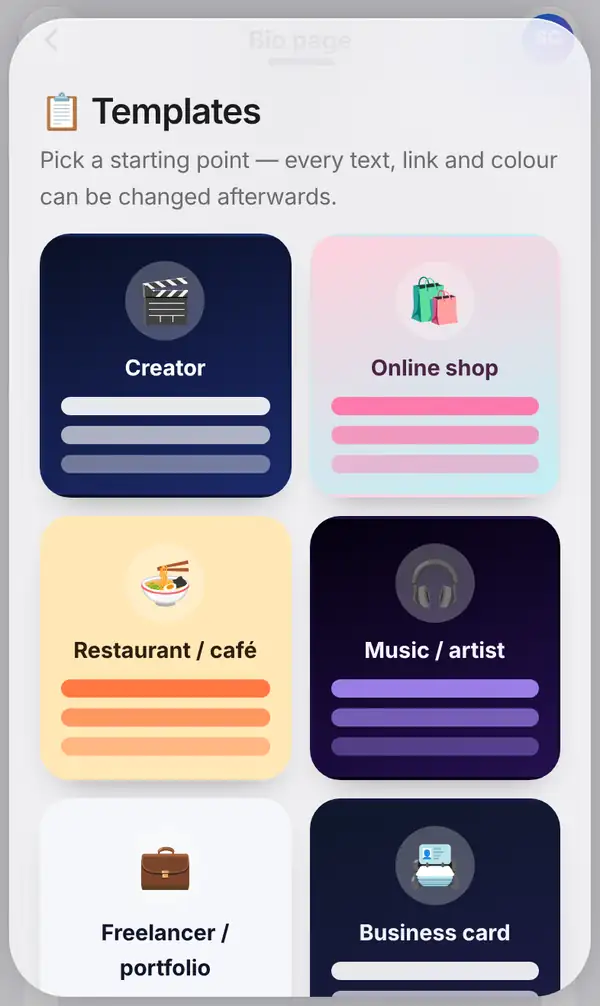
Next, choose one of the Templates: creator, online shop, restaurant or café, music, freelance or portfolio, digital business card and others. A template is only a starting point; every text, link and colour can be changed afterwards.
3. Add your content and style
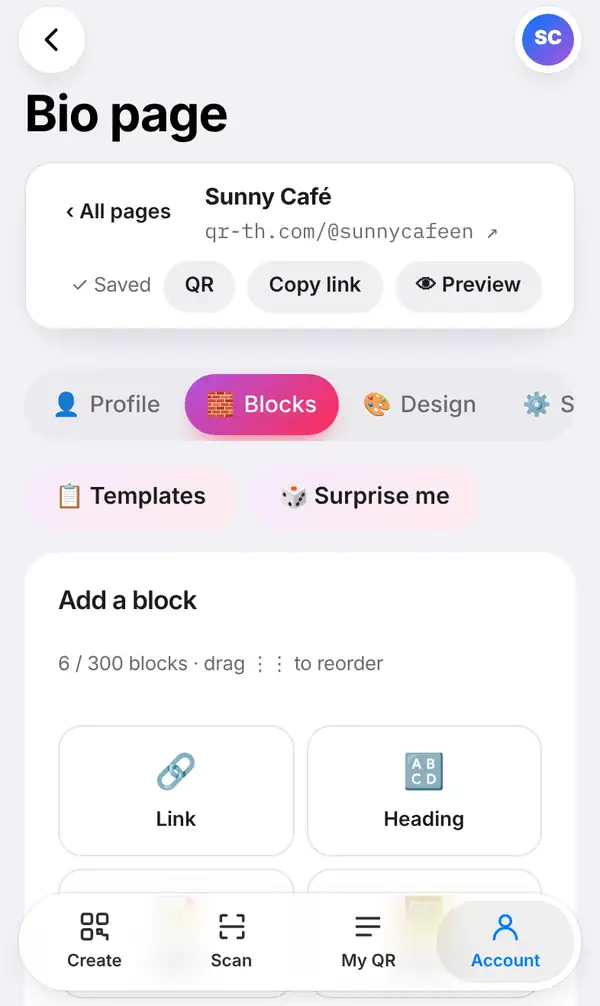
The editor has four main tabs: Profile, Blocks, Design and Settings.
- Profile: your name, a short bio, profile picture and social icons.
- Blocks: press Add a block to add links, headings, videos, music, a photo gallery, products, opening hours, FAQs, reviews and more. Drag the blocks to put them in the order you like.
- Design: themes, colours and backgrounds. Feeling stuck? Press Surprise me for a random design, and press again until you find one you like.
- Settings: options for the page as a whole.
You don't need to remember to save: the editor saves on its own and shows Saved at the top. From the same bar you can get the page's QR code, Copy link or press Preview to see it as visitors will.
4. Share your page
Your page is live straight away at qr-th.com/@yourname. Paste the link into your Instagram, TikTok, Facebook or LINE profile, add it to your email signature, or print the page's QR code on your shop window, packaging or business card.
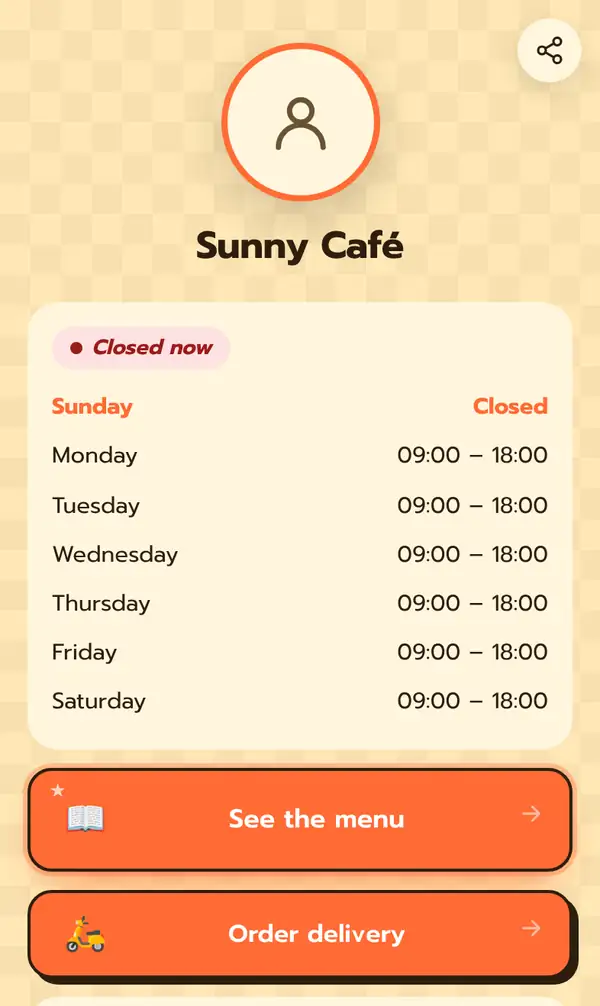
Here's what Sunny Café's page looks like to a visitor. The page appears in the visitor's own language, so the opening hours, day names and buttons are translated for them. At the top a label says "Closed now", followed by the hours for each day: closed on Sunday, 09:00–18:00 from Monday to Saturday. Below are big buttons to see the menu and order delivery, there's a share button in the top corner, and visitors can press Follow to keep up with the page.
Later, open the Stats tab to see how many people viewed your page and how many clicked each link.
Tips for a page that gets clicks
- Put your most important link (menu, shop or booking) at the top.
- Keep button texts short and clear: "Order delivery" beats "Click here".
- Use the opening hours block if you have a physical shop.
- Check Stats after a week and move the most-clicked links higher.
- How many pages and blocks you can have depends on your plan; see pricing.
FAQ
Is a Bio page free?
Yes, you can make one with a free account. Free accounts have limits, and Pro and Business plans give you more; see pricing.
Can I change my page after I've shared it?
Yes, any time. The address and the QR code stay the same, so everything you've already shared keeps working.
Can I see who clicks my links?
You see totals, not personal details: page views and clicks for each link, in the Stats tab.
What's the difference between a Bio page and a short link?
A short link sends people to one place. A Bio page is a whole page with many links, pictures and information.
Open your Bio page. Related: how to shorten a link and how to edit a QR code and see scans.