Make a QR code that opens your LINE Official Account ready to add as a friend. The same steps work for Facebook, Instagram, TikTok, YouTube and Google reviews.
📑 In this guide
- Make your LINE QR code in 3 steps
- 1. Open the social group and choose LINE
- 2. Type your LINE ID and download
- 3. Other social media codes
- Tips for social QR codes
- FAQ
- What's the difference between an Official Account ID and a personal LINE ID?
- Do customers need the LINE app?
- Is a LINE QR code free?
- Can I put all my social links in one QR code?
LINE is how many customers in Thailand and across Asia chat with shops, so a QR code that adds your LINE account in one scan is a simple way to win followers. In this guide you'll make one on the LINE QR code page. It takes about two minutes, it's free, and you'll need your LINE ID. The same steps work for Facebook, Instagram, TikTok, YouTube and Google reviews.
Make your LINE QR code in 3 steps
1. Open the social group and choose LINE
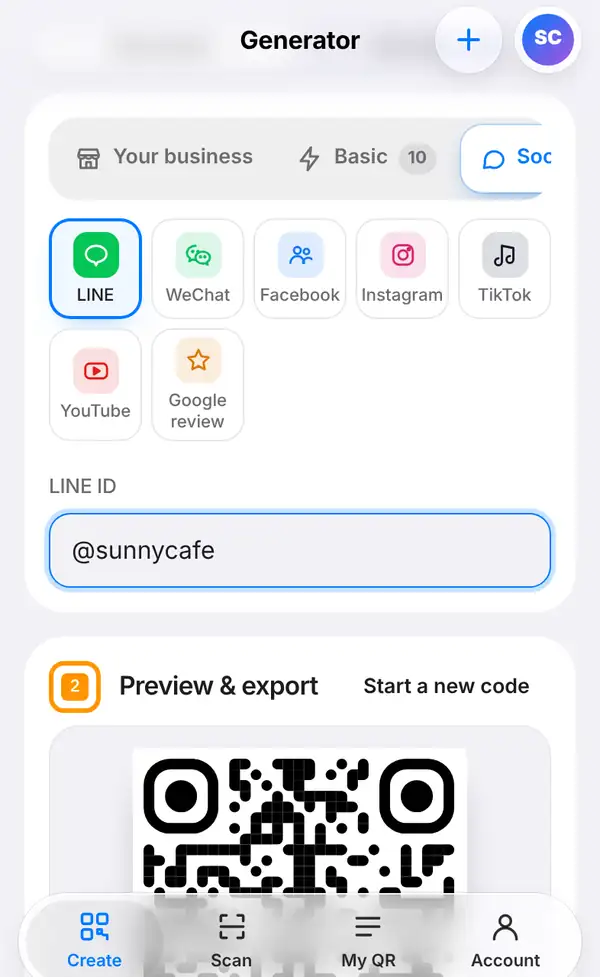
Go to Create, open the Social & reviews group and tap LINE, or open the LINE QR code page directly.
In this group you'll find all the social kinds side by side: LINE, WeChat, Facebook, Instagram, TikTok, YouTube and Google review.
2. Type your LINE ID and download
In the LINE ID box, type your ID:
- for a LINE Official Account, use its @ID, for example @sunnycafe;
- for a personal account, use your LINE ID.
When someone scans the code, LINE opens with your account ready to add as a friend.
The QR code updates as you type. Scroll down to Preview & export, check that the Scan check row is green, then press Export image to download it or Print-ready sign (PDF) for a ready-made sign. Want your brand colours or a "Scan me" frame? Press Design QR first.
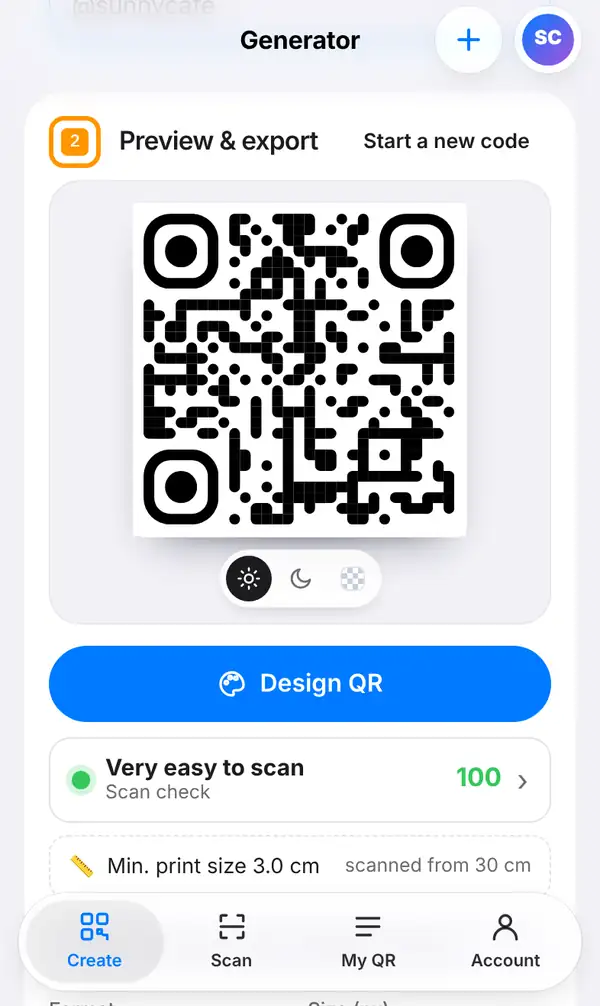
Before printing, scan the code with your own phone and make sure it opens the right account.
3. Other social media codes
The other social kinds work the same way: choose the platform, then type your username or paste the link to your page or profile.
- Facebook: link to your page so people can follow or message you.
- Instagram and TikTok: send people straight to your profile.
- YouTube: open your channel or a specific video.
- Google review: take happy customers straight to the place where they can leave you a review.
Have lots of links to share? Instead of printing five different codes, make one Bio page with all your links and print a single QR code for it.
Tips for social QR codes
- Add a short reason to scan next to the code, such as "Add us on LINE for weekly deals".
- Put the code where customers wait: at the till, on tables or on takeaway bags.
- Use a frame with a call to action from Design QR to make the code stand out.
- Double-check the @ in your LINE Official Account ID; it's part of the ID.
FAQ
What's the difference between an Official Account ID and a personal LINE ID?
An Official Account ID starts with @ and belongs to a business account. A personal LINE ID is the one you set in your own LINE profile. Both work in the LINE ID box.
Do customers need the LINE app?
Yes. To add you as a friend, they need LINE installed on their phone.
Is a LINE QR code free?
Yes. It's free to make and download, with no account needed.
Can I put all my social links in one QR code?
Yes, with a Bio page. It holds all your links on one page with one QR code.
Make your LINE QR code. Related: how to make a Bio page and how to design a QR code with your logo.