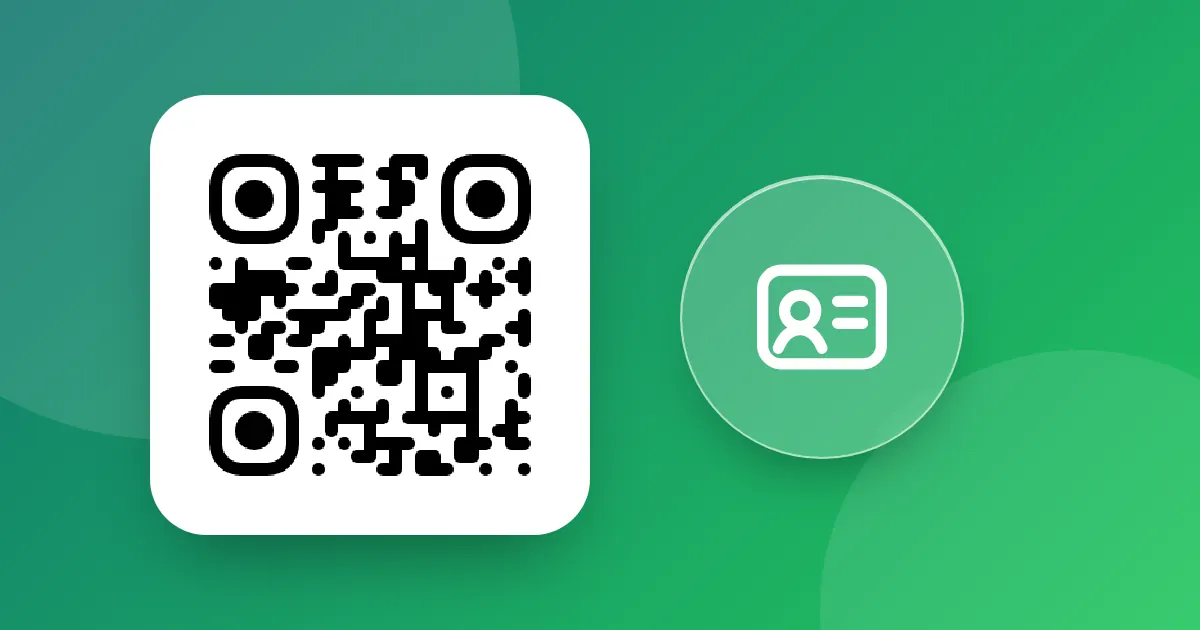
Put your contact details in a QR code: fill in your name, phone and email, download as SVG and let people save you to their phone with one scan.
📑 In this guide
A contact QR code on your business card lets people save your name, number and email to their phone in one scan, with no typing and no typos. In this guide you'll make one on the contact card QR page and get it ready for printing. It takes about three minutes, it's free, and you just need the details you want to share.
Make your contact QR code in 3 steps
1. Fill in your details
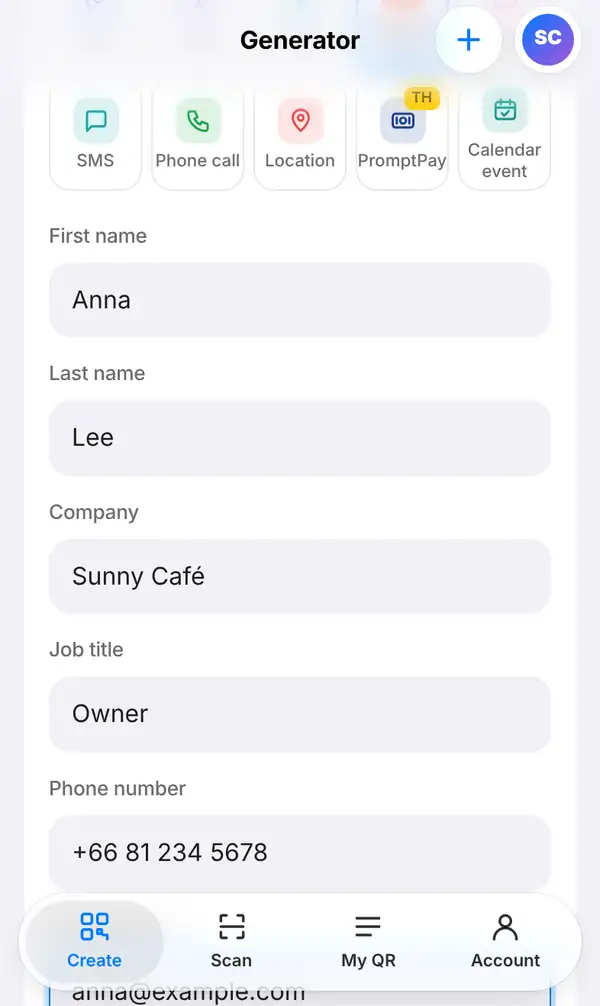
Open the contact card QR page, or go to Create, open the Basic group and tap Contact card. Then fill in what you'd like people to have:
- First name and Last name – for example Anna Lee
- Company – Sunny Café
- Job title – Owner
- Phone number – include your country code, such as +66 81 234 5678, so it works for callers abroad
- Email address
- Website
- Address
You don't have to fill in every box. Only share what you're happy for anyone with your card to see.
2. Check the preview and download
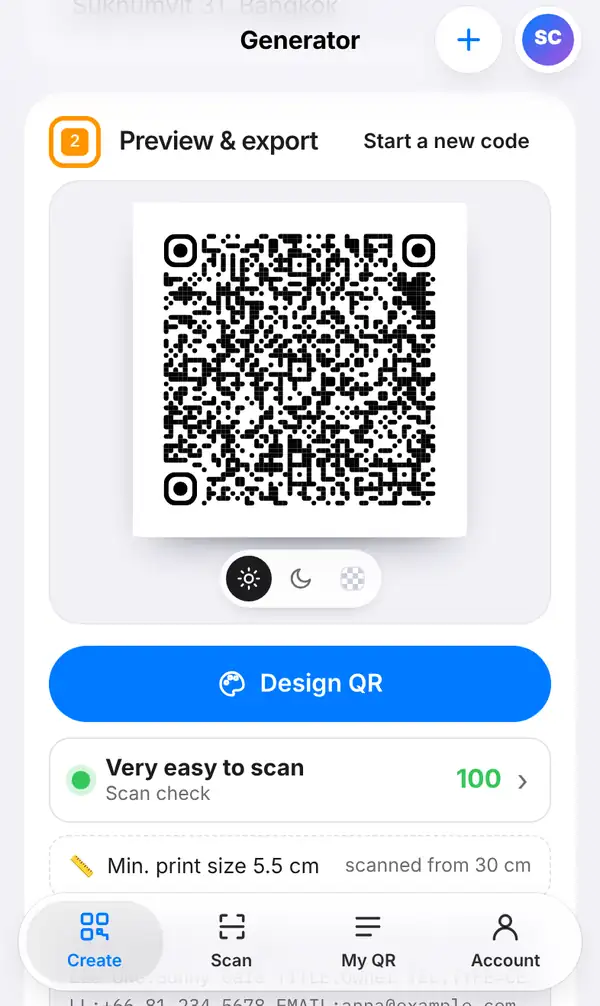
Scroll down to Preview & export. You'll notice this code has many more small dots than a simple link code. That's normal: every detail you add makes the pattern denser.
A denser code needs to be printed larger, so look at the Scan check row and the smallest print size below it. If the code has to fit in a small corner of a business card, leave out details people don't really need, such as the full address.
For printing, choose SVG as the Format and press Export image. SVG stays perfectly sharp at any size, which is what printers prefer.
3. Test it
Scan the code with an iPhone and with an Android phone. Each should show your details with an option such as "Add contact" or "Create new contact". Check that your name, number and email are all correct before you order a box of cards.
Tips for contact QR codes
- Fewer details give a simpler code that scans faster and can be printed smaller.
- Print the code at least as big as the smallest size shown on screen.
- Use dark dots on a light background; avoid putting the code on a photo.
- Add a few words next to it, such as "Scan to save my number".
- A contact QR code is static: once printed, it can't be changed. If your details change often, make a Bio page or a dynamic link instead, which you can update any time.
FAQ
What is a vCard?
A vCard is the standard format phones use for contact details. A vCard QR code holds that information, so the phone can save it as a new contact.
Can I update my details after printing?
Not with a contact QR code; the details are inside the pattern itself. For details you can change, use a Bio page or a dynamic QR code that links to one.
Why is my code so dense?
Every character you add needs more dots. Remove details you don't need, or print the code larger.
Is it free?
Yes. A contact QR code is static, so it's free to make and download, with no account needed.
Make your contact QR code. Read more in vCard QR codes for business cards, or learn how to make a Bio page.