Make a free QR code in a few minutes: choose the kind, type your link, check it scans well and download it as PNG, JPG or SVG. No account, no ads.
📑 In this guide
Making a QR code takes about two minutes, and you don't need an account, an app or any design skills. In this guide you'll make a QR code for a website link on the QR-TH generator, check that it scans easily, and download it ready for print. All you need is the link you want people to open.
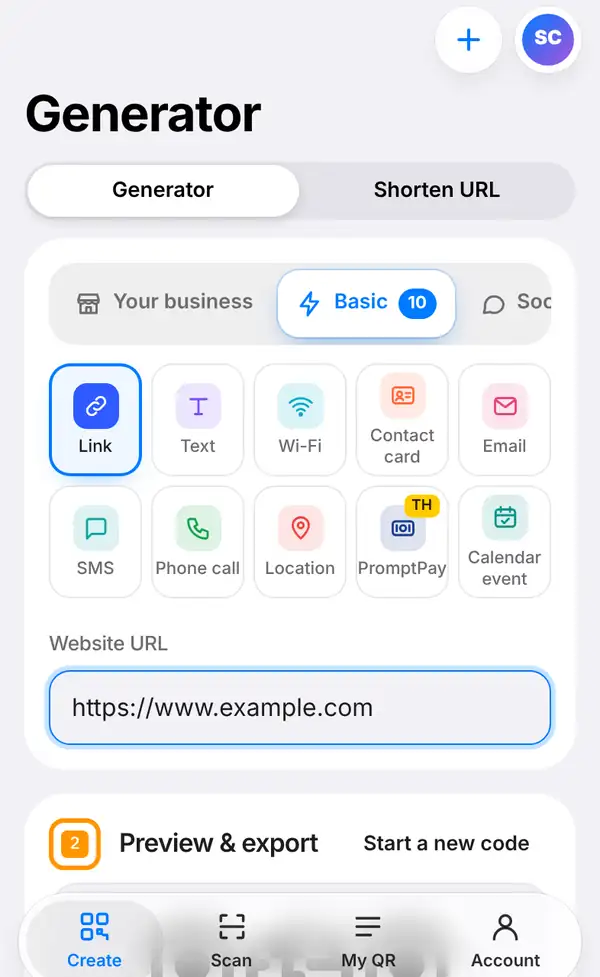
QR-TH can make many kinds of QR code, sorted into four groups so you can find yours quickly:
- Your business: ready-made ideas for shops, cafés and events.
- Basic: Link, Text, Wi-Fi, Contact card, Email, SMS, Phone call, Location, PromptPay and Calendar event.
- Social & reviews: LINE, Facebook, Instagram, TikTok, YouTube and Google review.
- Pages we host for you: a Menu, a Link in bio page, a PDF, Photos, a Video or a Coupon, with the page itself kept on our site.
Every static code is free to download, with no ads after scanning and no watermark.
Make your QR code in 4 steps
1. Choose the kind and add your link
Open the Create tab at the bottom of the screen (on a computer, use the top menu). At the top you'll see a switch between Generator and Shorten URL – keep it on Generator. Pick a group, then tap Link. Type or paste your address into the Website URL box, for example https://www.example.com. The QR code is drawn as you type, so there's no "generate" button to hunt for.
2. Check the preview
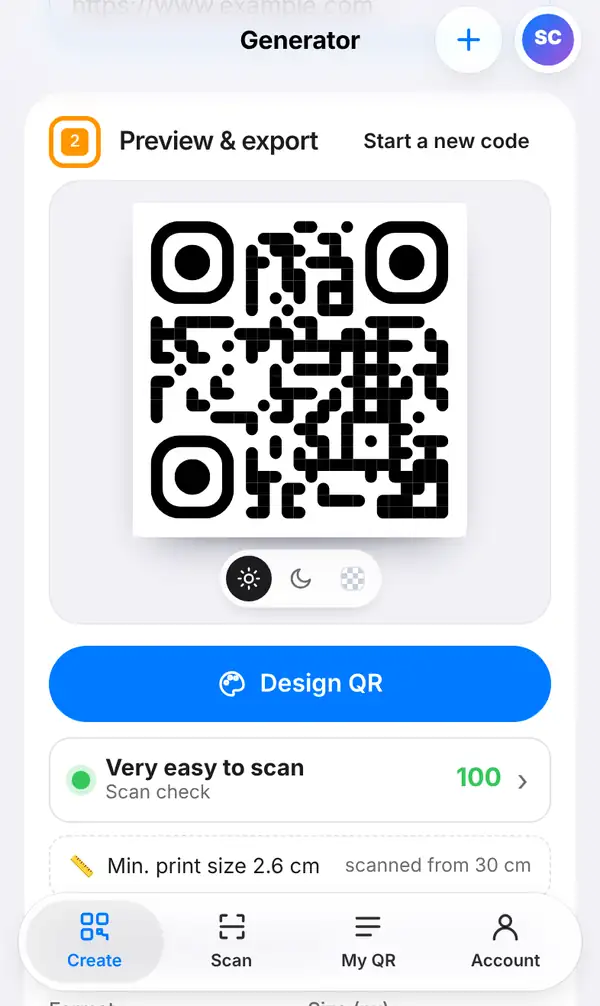
Scroll down to Preview & export. Here you can see your finished QR code, with small buttons under it to view it on a light, dark or see-through background.
Just below the preview is the Scan check row. A green dot and a high score mean the code is very easy for phones to read. Under it you'll see the smallest size you can safely print it at, which is handy before you send anything to a printer.
Want your own colours, a logo or a frame with "Scan me"? Press Design QR. A design panel opens and the code updates as you choose; our design tutorial walks you through it.
3. Download it
Further down, choose a Format – PNG or JPG for screens, documents and social posts, SVG for printing at any size – and set the Size (px). Then press Export image and the file is saved to your phone or computer.
Two extras are worth a look:
- Print-ready sign (PDF) makes a neat sign with your QR code, ready to print and put on a counter, door or table.
- See it on real things shows your code on objects such as cups, stickers and posters, so you can picture the result before printing.
4. Save it to your account (optional)
If you'd like to keep the code, press Save to my QR codes. This needs a free account, and the code then appears in the My QR tab. Saved codes can be dynamic: they go through a short link, so you can change where they lead later, even after printing, and see how many people scan them. How many dynamic codes you can keep depends on your plan – see pricing.
Tips before you print
- Test the code with two different phones, ideally one iPhone and one Android.
- Keep a dark code on a light background; light-on-dark and low-contrast colours are harder to read.
- Don't print smaller than the size shown under Scan check.
- Use SVG for large prints such as posters and banners, so the edges stay sharp.
- If the link might change, save it as a dynamic code first, then print.
FAQ
Is it really free?
Yes. Making and downloading a static QR code is free, with no account, no ads and no watermark. A free account adds things like codes you can edit later and scan statistics.
Do QR codes expire?
A static code never expires: the link is stored inside the pattern itself. A dynamic code keeps working as long as it stays active in your account.
Which format should I download?
PNG is fine for most uses on screen and in documents. For printing, especially large prints, SVG is the best choice because it stays sharp at any size.
Can I change the link after printing?
Only if you saved it as a dynamic code. A static code can't be changed, so you'd need to print a new one.
Ready to try? Create your QR code now. Next, learn how to design a QR code with your logo or how to edit a QR code and see scans.