Make a Wi-Fi QR code in two minutes: enter your network name, password and security type, download it and let guests join by scanning. Free, no account.
📑 In this guide
Tired of spelling out your Wi-Fi password to every customer? With a Wi-Fi QR code, guests point their phone camera at a sign and join your network with one tap – no typing at all. This guide shows you how to make one on the Wi-Fi QR code page. It takes about two minutes, it's free, and you don't need an account. Just have your network name and password to hand.
Make your Wi-Fi QR code in 3 steps
1. Enter your network details
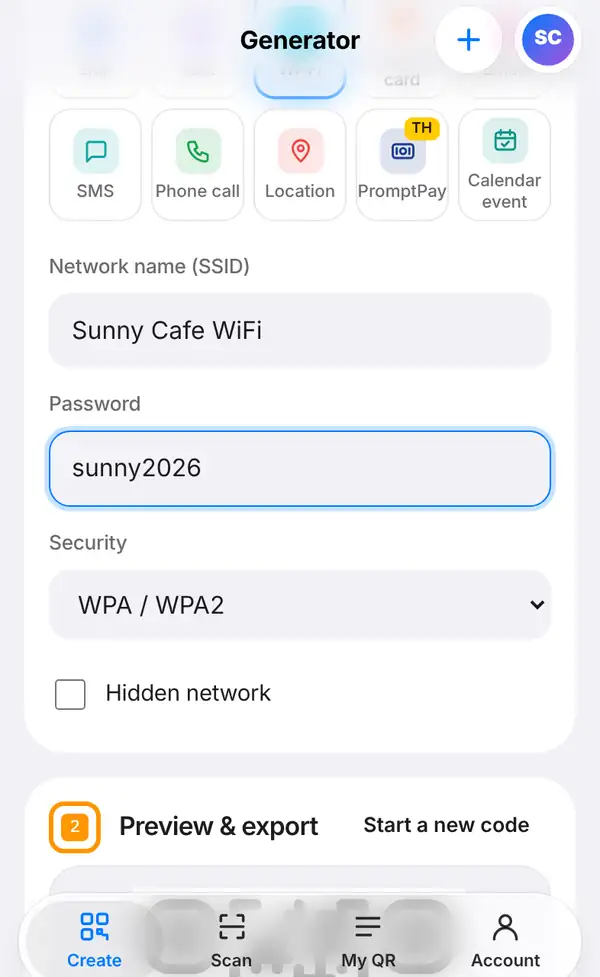
Open the Wi-Fi QR code page, or go to Create, open the Basic group and tap Wi-Fi. Then fill in:
- Network name (SSID): type it exactly as it appears in the Wi-Fi list on a phone, for example "Sunny Cafe WiFi". Capital letters, spaces and symbols all matter.
- Password: your Wi-Fi password, for example "sunny2026". Again, check every character.
- Security: most routers use WPA / WPA2. If your network has no password, choose the no-password option instead.
- Hidden network: tick this only if your network doesn't appear in the normal Wi-Fi list.
If you're not sure about any of these, look at the sticker on your router or in its settings.
2. Check and download
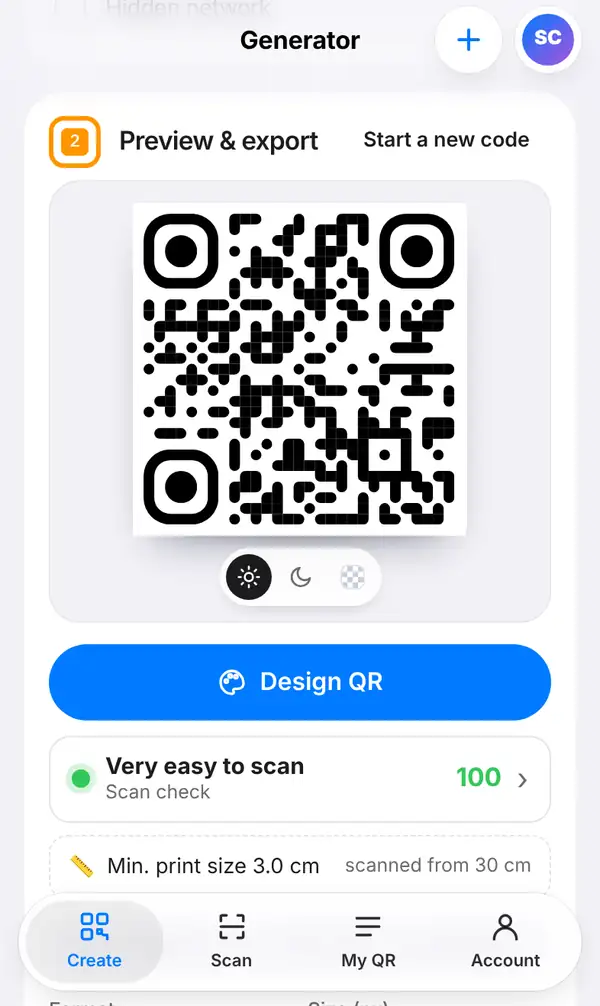
Scroll down to Preview & export. Check the Scan check row – a green dot means the code is easy to read – and note the smallest print size shown underneath.
Then download the code: choose a format and press Export image, or press Print-ready sign (PDF) for a ready-made sign you can print and stand on the counter or stick on the wall. You can also press Design QR first to add your café's colours and logo.
3. Test it before you put it up
Scan the code with an iPhone camera and with an Android camera. Each phone should show a message asking whether to join your network. Tap it and check you're online.
If it doesn't connect, the usual cause is a small typo in the network name or password. Correct it and download a new code.
Remember that a Wi-Fi QR code contains the password itself. It's a static code, so if you change your Wi-Fi password, you'll need to make and print a new QR code.
Tips for Wi-Fi QR codes
- Set up a separate guest network for customers, so they can't reach your shop computers or card machine.
- Put the sign where people sit or wait, at eye level, not behind the counter.
- Add a short line next to the code, like "Scan to join our free Wi-Fi".
- Keep the sign away from glare and reflections from windows and lamps.
- Our article on Wi-Fi QR code security explains how to share Wi-Fi safely.
FAQ
Do guests need a special app?
No. The camera app on modern iPhones and Android phones reads Wi-Fi QR codes and offers to join the network.
Can someone see my password from the QR code?
Anyone who scans the code can connect, and some phones can show the password. That's why a separate guest network is the safer choice for customers.
What happens if I change my Wi-Fi password?
The old QR code will stop working. Make a new code with the new password and replace the printed sign.
Is a Wi-Fi QR code free?
Yes. It's a static code, so it's free to make and download without an account.
Make your Wi-Fi QR code. Related: Wi-Fi QR code security and how to design a QR code with your logo.