Upload a PDF, photos or a video and get a QR code that opens a neat page for it. Preview it, publish it and replace the file later without reprinting.
📑 In this guide
Want people to open your price list, brochure or product video by scanning a code? QR-TH hosts the file for you on a clean, phone-friendly page and gives you a QR code for it. This guide uses the PDF QR code page as the example; the photos and video pages work the same way. It takes about five minutes, and you'll need your file and a free account to publish.
Make your file QR code in 3 steps
1. Add a title and upload your file
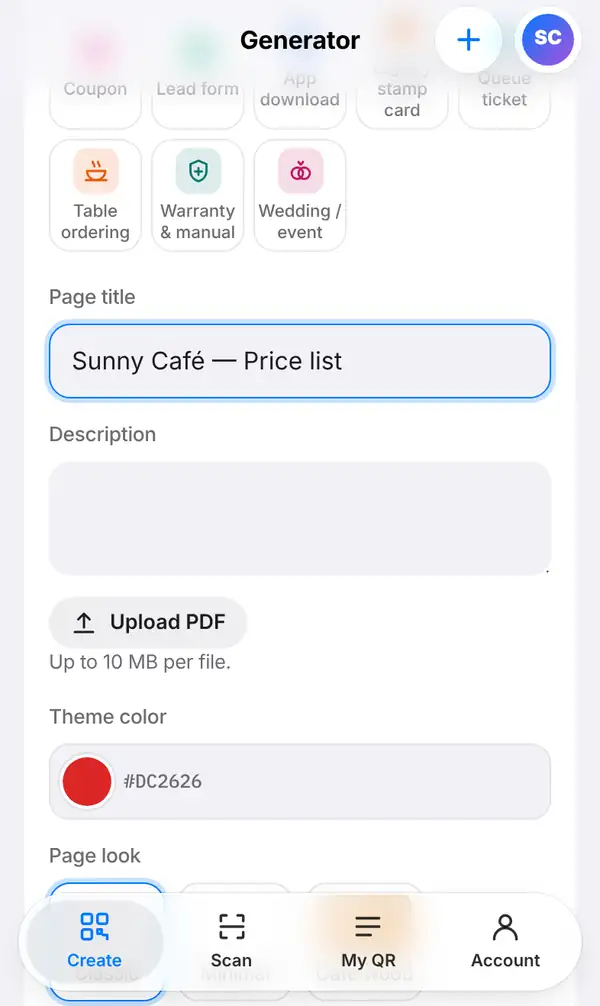
Open the PDF QR code page, or go to Create, open Pages we host for you and tap PDF, Photos or Video.
Fill in a Page title, such as "Sunny Café — Price list", and if you like a Description that tells people what they're looking at. Then press Upload PDF and choose your file. For photos or a video, you upload those instead.
Finish by picking a Theme color and a Page look so the page matches your brand. How large your files can be depends on your plan; see pricing.
2. Preview and publish
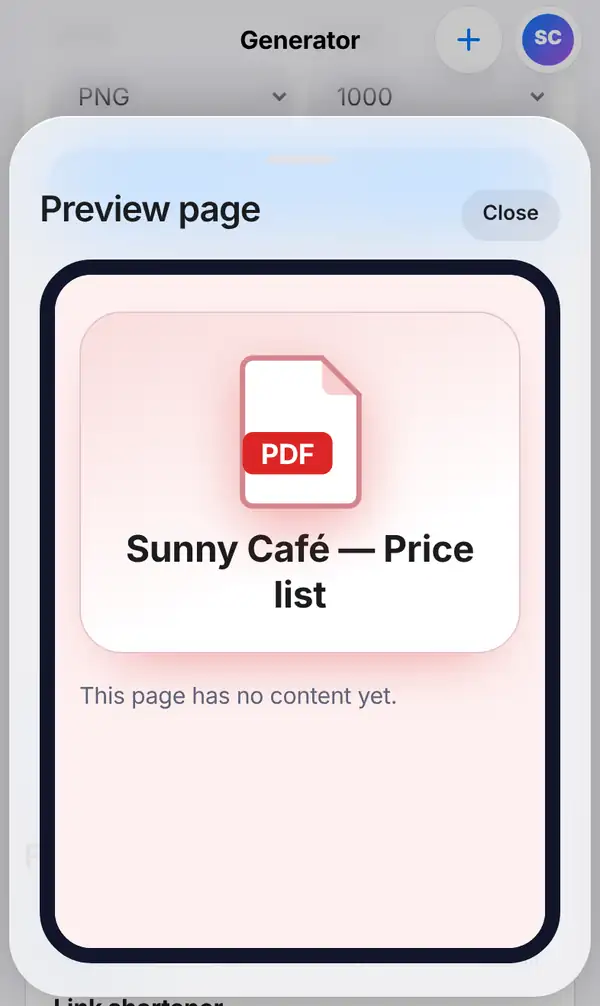
Press Preview page to see what people will see when they scan: your title, your file and your colours, in a layout made for phones. Check that the title is right and that the file opens.
When you're happy, press Publish page. This needs a free account. Until you publish, the preview QR only points to a placeholder link, so don't print it yet. After publishing, the QR code opens your page and it's saved in My QR.
Then design and download the code as usual, with Design QR and Export image, or print a sign with Print-ready sign (PDF).
3. Update the file whenever you need to
Prices change, brochures get new pages, and videos get updated. Open the page again from My QR, replace the file and publish. The printed QR code stays the same and now shows the new file.
Some ideas for file QR codes:
- price lists and catalogues on the counter;
- brochures and flyers at trade fairs;
- product manuals and warranty information on the box;
- certificates and documents for customers;
- wedding and event photos for guests;
- product and how-to videos.
Tips for file QR codes
- Make PDFs easy to read on a phone: large text and few columns.
- Keep files small so they load quickly on mobile data.
- Use a clear page title; it's the first thing people see.
- Test the code with your phone after publishing, before printing many copies.
- On free accounts, hosted pages show a small "Made with QR-TH" badge.
FAQ
Do people need to download the file?
No. The page opens in their browser, and they can view the file there or save it if they want.
Can I change the file after printing the QR code?
Yes. Replace the file and publish again; the printed code keeps working and shows the new version.
How big can my file be?
It depends on your plan. You'll see the limit next to the upload button; pricing shows what each plan includes.
Why do I need an account?
Because we keep your file and page online for you, and your account is where you manage and update them.
Make a PDF QR code. Related: how to make a QR menu and how to edit a QR code and see scans.