
Make many QR codes at once from an Excel or CSV file or a pasted list – name tags, table numbers, product labels – in one design, downloaded as a ZIP.
📑 In this guide
Need a QR code for every table, every staff name tag or every product on the shelf? Making them one by one takes ages. With the bulk QR code generator you make them all at once from an Excel file or a simple list, in your own design. It takes about five minutes, it's free, and you don't need an account – just your list of links or texts.
Make bulk QR codes in 3 steps
1. Open the bulk generator
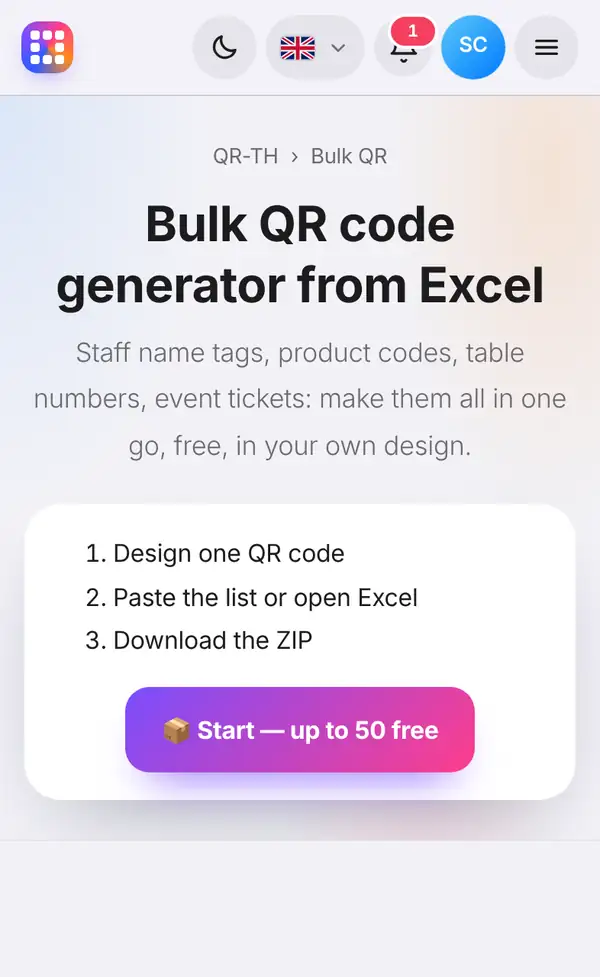
Open the bulk QR code generator. The page sums up the three steps:
- Design one QR code.
- Paste a list or open an Excel file.
- Download a ZIP file.
Press the start button. It's free and needs no account, up to the free limit shown on the button. Larger batches depend on your plan; see pricing.
2. Design one code, then add your list
You'll land in the generator. First design one QR code the way you want all of them to look – colours, dot shape, logo, frame (see how to design a QR code with your logo). Every code in the batch will use this design.
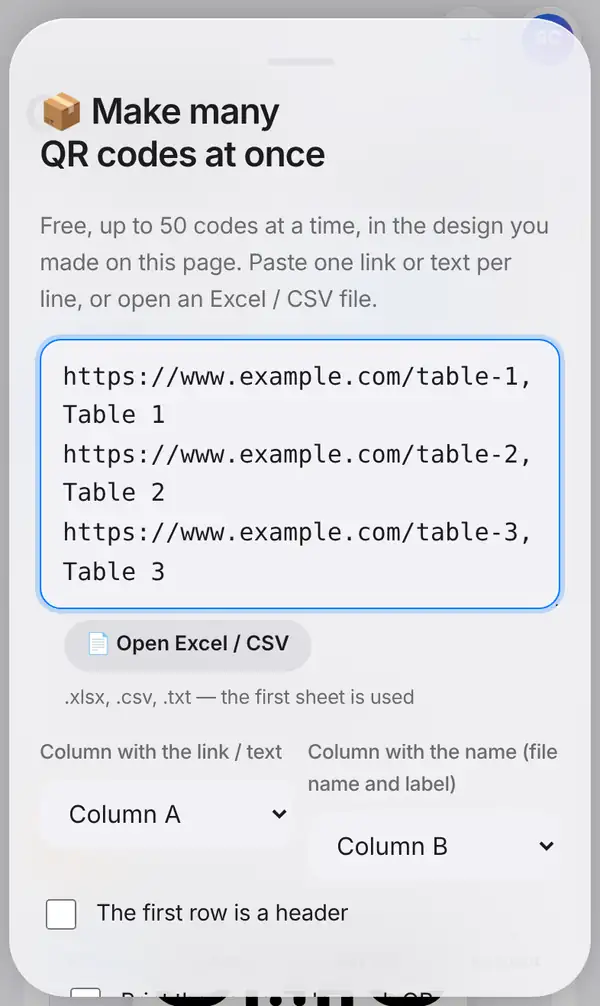
Then press Bulk (Excel). A panel opens where you can:
- Paste a list: one item per line. To give each code a name, add it after a comma, like this: "https://www.example.com/table-1, Table 1".
- Open Excel / CSV: pick a .xlsx, .csv or .txt file. The first sheet is used.
Next, tell it which column is which: choose the Column with the link / text and the Column with the name (file name and label). If the first row of your sheet has headings, tick The first row is a header so it isn't turned into a QR code. Tick Print the name under each QR if you want the name printed below each code – perfect for table numbers and name tags.
3. Download the ZIP
Press Make & download ZIP. You'll get one ZIP file containing a PNG image for every QR code, each named after your name column (for example "Table 1.png"), plus a list.csv file that shows which code is which.
All codes share the same design, so your table cards or labels look consistent.
These are static codes. If you need codes you can change later and track, members can create dynamic codes in bulk from the dashboard.
Tips for bulk QR codes
- Check your spreadsheet for empty rows and typos before you start.
- Use clear, unique names; they become the file names.
- Make a test batch of two or three codes and scan them before making hundreds.
- Keep your design simple and high-contrast, especially for small labels.
- Read bulk QR codes from Excel for more ideas and spreadsheet tips.
FAQ
Do I need an account?
No. Bulk static codes are free without an account, up to the free limit. Dynamic codes in bulk need an account.
Is my list uploaded?
No. The codes are made in your browser, so your list stays on your device.
Which file types can I use?
Excel (.xlsx), CSV (.csv) and plain text (.txt). You can also paste the list straight into the box.
Can each code have a different design?
No. Every code in one batch uses the design you made. For a different design, make a second batch.
Make bulk QR codes. Related: bulk QR codes from Excel and how to design a QR code with your logo.