Change where a printed QR code goes and see how many people scan it. A guide to dynamic QR codes in My QR and the Analytics page, with ideas to try.
📑 In this guide
- Edit your QR code and see your scans
- 1. Find your code and change its destination
- 2. Read your scan statistics
- 3. Put it to work
- Tips for dynamic codes
- FAQ
- What is the difference between a static and a dynamic QR code?
- Will the old printed code still work after I change the link?
- Can I see who scanned my code?
- Can I turn a code off?
Printed hundreds of flyers and then the link changed? With a dynamic QR code that's no problem: you change where it goes, and the printed code keeps working. In this guide you'll learn how to edit a saved QR code in My QR and read its scan statistics in Analytics. It takes a few minutes, and you need a free account with at least one saved code.
Edit your QR code and see your scans
1. Find your code and change its destination
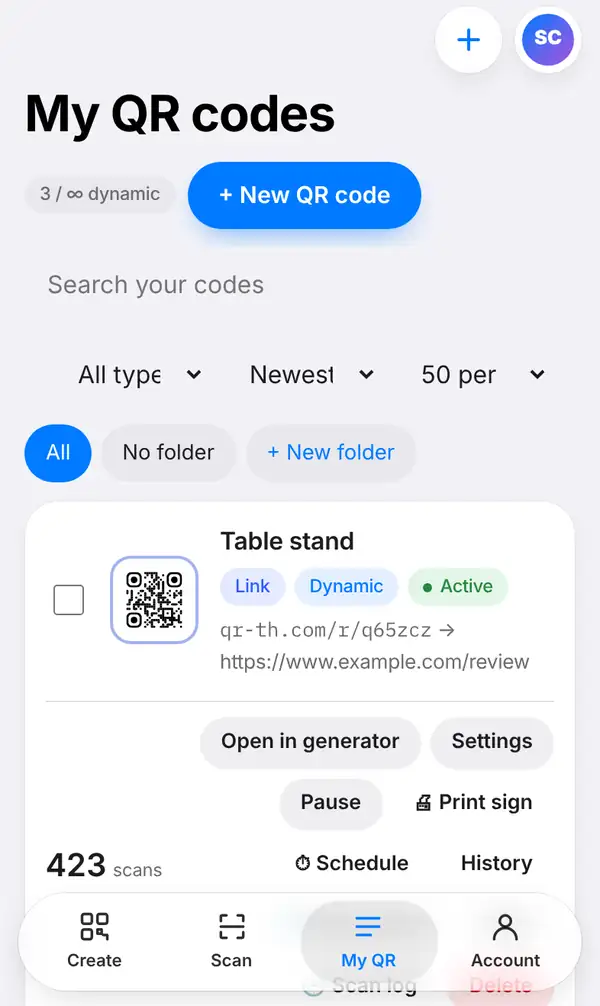
Sign in and open the My QR tab. This is My QR codes: every code you've saved, each with its short link (qr-th.com/r/…), its kind, its status (for example active or paused) and how many times it has been scanned. Use the search box, filters, sort order and folders to find what you need when the list grows.
Each code has its own buttons:
- Open in generator opens the code in the maker, where you can change the link or the design.
- Settings holds the code's options.
- Pause stops the code for a while without deleting it.
- History shows the links the code used before, so you can switch back.
To send people somewhere new, press Open in generator, type the new address and save. That's it: the printed QR code now opens the new page, because it points to your short link and the short link now leads to the new address.
2. Read your scan statistics
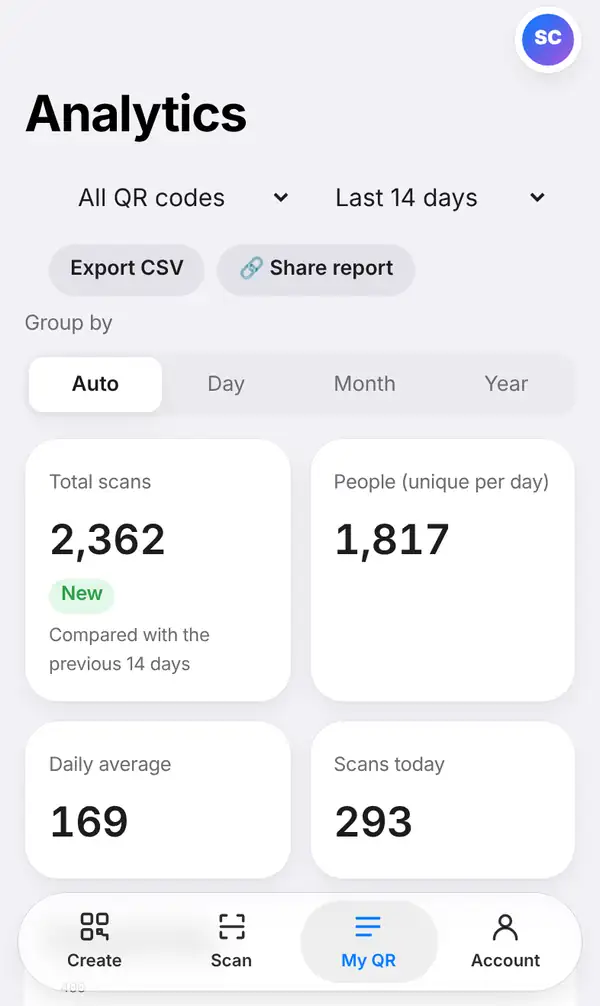
Open Analytics. At the top, choose one QR code or all of them, and the date range you're interested in. You'll then see:
- total scans, and how many people scanned (each person counted once a day);
- the daily average and today's scans;
- a chart of scans over time, which you can group by day, month or year;
- which devices people used, which countries they were in, and what time of day they scanned.
Press Export CSV to download the numbers for a spreadsheet. To let a client or colleague follow the numbers without giving them your login, press Share report: it creates a read-only link to the scan statistics of that QR code (or of all your codes). Anyone with the link sees those statistics and nothing else, and can't change anything. You'll find the button here on the Analytics page and on each code in My QR; it's a Pro and Business feature.
3. Put it to work
Here are a few ideas for small businesses:
- Lunch and dinner menus: point the table QR code to the lunch menu at noon and the dinner menu in the evening.
- Which poster works best? Put a different code on each poster and compare their scans.
- Promotions: send a code to a sale page, then pause it or point it to your regular page when the sale ends.
- Mistakes: if you printed the wrong link, just fix it – no reprint needed.
Remember, only dynamic codes can be changed and counted. Those are codes saved to My QR that work through a qr-th.com/r/… short link. Static codes, like a Wi-Fi, contact card or PromptPay code, hold their information inside the pattern, so they can't be edited or tracked.
Tips for dynamic codes
- Save a code as dynamic before you print it, even if you think the link won't change.
- Give each code a clear name, such as "Table stand" or "Window poster", so the list stays easy to read.
- Use folders when you have codes for several shops or campaigns.
- Check statistics after a week to see which places get the most scans.
- How many dynamic codes you can keep depends on your plan: see pricing.
FAQ
What is the difference between a static and a dynamic QR code?
A static code holds the information itself and can never change. A dynamic code holds a short link that you can point anywhere, any time. Read more in static vs dynamic QR codes.
Will the old printed code still work after I change the link?
Yes. The printed pattern doesn't change; only the page it leads to does.
Can I see who scanned my code?
You see totals: number of scans, people per day, devices, countries and times. You don't see personal details about individual people.
Can I turn a code off?
Yes. Press Pause, and turn it back on whenever you're ready.
Open My QR. Related: static vs dynamic QR codes and how to shorten a link.