Public Wi-Fi safety made simple: spot evil twin networks, know what HTTPS and VPNs protect, fix sharing settings and use Wi-Fi QR codes the safe way.
📑 In this guide
- The real risks of public Wi-Fi today
- Fake look-alike networks (evil twin Wi-Fi)
- Captive portals that ask for too much
- Unencrypted websites
- Auto-join and sharing settings
- What HTTPS protects, and what it doesn't
- When a VPN helps, and how to choose one
- Safe habits on public Wi-Fi
- Before you connect
- While you are connected
- Check your sharing settings
- After you leave
- Wi-Fi QR codes in cafés and hotels
- Quick checklist
- FAQ
- Is public Wi-Fi safe for online banking?
- Can someone hack my phone just because I joined public Wi-Fi?
- Do I need a VPN on public Wi-Fi?
- How can I tell if a Wi-Fi network is an evil twin?
Public Wi-Fi safety today is better than it used to be, because most websites and apps now encrypt their connections. Public Wi-Fi is reasonably safe for everyday browsing, but the network itself can still be fake, nosy or badly set up. With a few habits, such as checking the network name, using mobile data for banking and switching off sharing features, you can use free Wi-Fi with little risk.
Why does this matter? A fake network or a careless setting can expose your passwords, your personal details or the files on your device. Criminals count on people joining the first free network they see and tapping "OK" without reading.
The real risks of public Wi-Fi today
Fake look-alike networks (evil twin Wi-Fi)
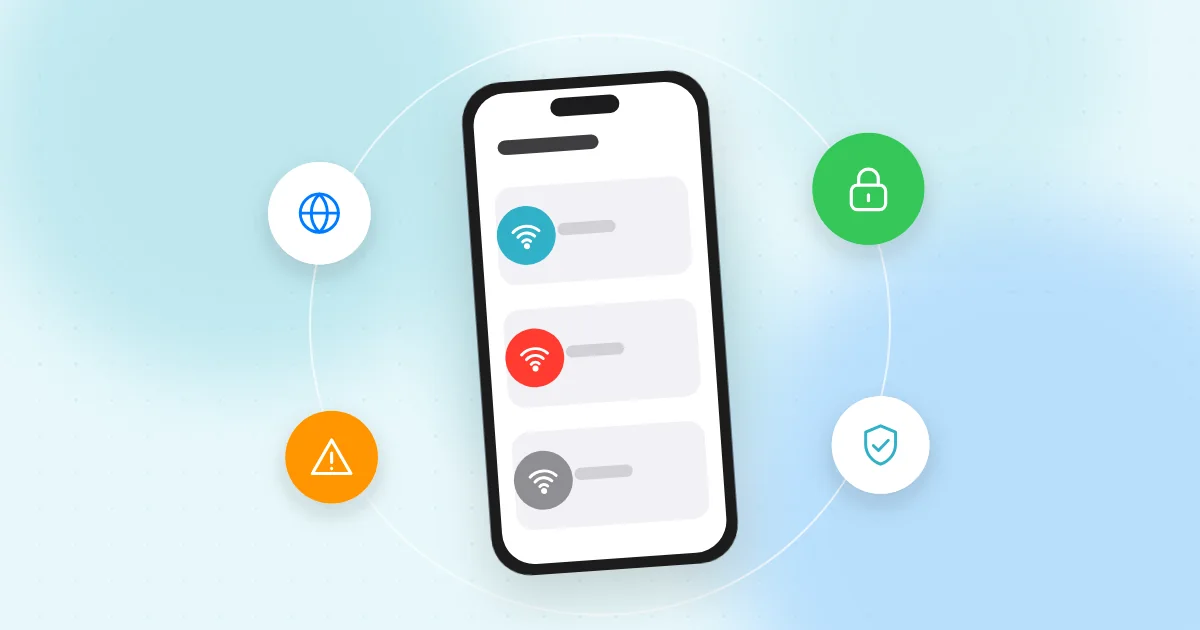
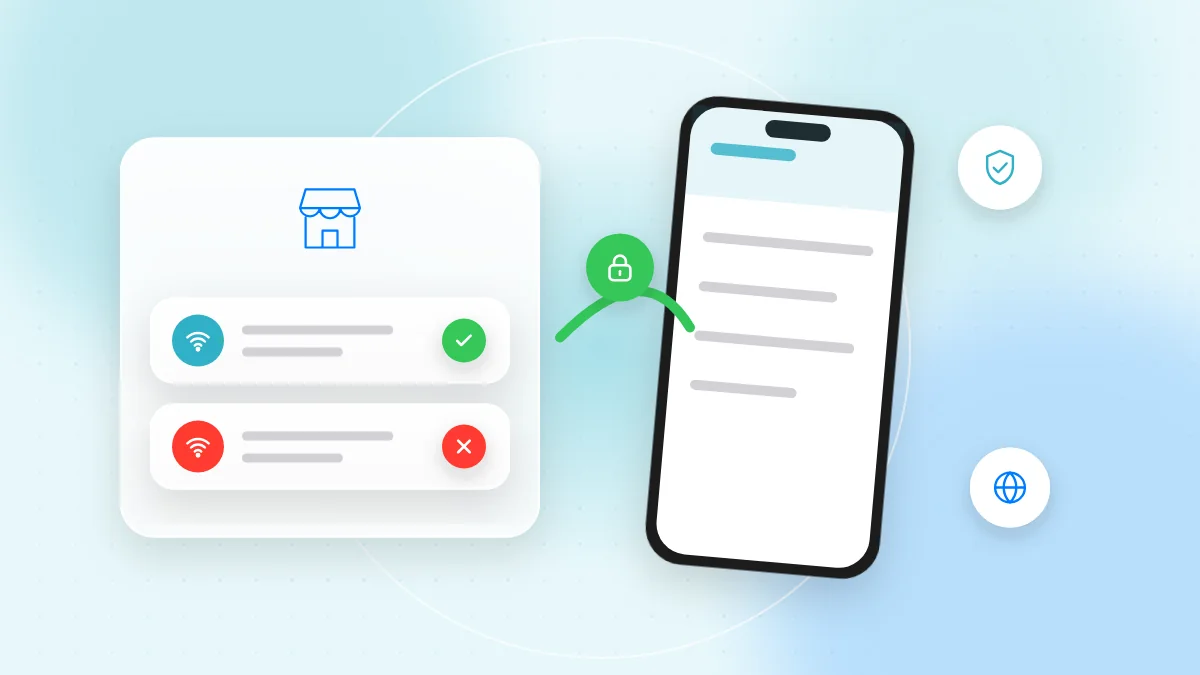
An "evil twin" is a network set up by someone nearby with a name that looks like the real one, for example "Airport_Free_WiFi" next to "Airport Free WiFi". If you join it, the attacker controls your connection and can show you fake login pages or send you to fake websites. Your phone may even join it automatically.
Captive portals that ask for too much
A captive portal is the page that appears before you get online, where you accept terms or enter a room number. Many are harmless, but some ask for your full name, phone number, date of birth or a social media login that shares your profile. Give only what is truly needed.
A fake portal may also ask for a password, a card number, or for you to install an app, a "security certificate" or a profile. Real café or hotel Wi-Fi never needs any of these.
Unencrypted websites
Most sites now use HTTPS, but some older sites and small pages still don't. On an open network, anything you type into an unencrypted page can be read by others on the network or by whoever runs it.
Auto-join and sharing settings
Devices like to reconnect to known networks automatically, which is risky with common public names. Sharing features, such as laptop file sharing or receiving files from anyone nearby, can let strangers see your device or send you unwanted content.
What HTTPS protects, and what it doesn't
A padlock or "https://" in the address bar means the connection between your device and that website is encrypted.
HTTPS protects:
- The passwords, messages and card numbers you type on that site
- The content of the pages you open
HTTPS does not protect:
- Which websites you visit. The network operator can usually still see website names, though not the pages.
- Fake websites. A scam site can have a padlock too. The padlock means "encrypted", not "trustworthy".
- Your choices. If an evil twin sends you to a look-alike login page and you type your password, HTTPS won't help.
So always check the website address, not just the padlock. If your browser shows a "not secure" or certificate warning on public Wi-Fi, stop and don't continue.
When a VPN helps, and how to choose one
A VPN (virtual private network) creates an encrypted tunnel from your device to the VPN provider's server. The local network then sees only that you use a VPN, not which sites you visit.
A VPN does not stop phishing, fake websites, malware or scam messages. It also moves trust: the VPN provider, instead of the café, can now see your traffic patterns. So choose carefully:
- Avoid unknown free VPN apps. Running VPN servers costs money, and some free apps earn it through heavy ads, collecting your data or asking for permissions they don't need.
- Pick a well-established provider with a clear privacy policy and independent security audits, or use the VPN your employer provides for work.
- Install it only from the App Store, Google Play or the provider's official website.
- Turn on the "always-on" or "kill switch" option, so traffic doesn't leak if the VPN disconnects.
Safe habits on public Wi-Fi
Before you connect
- Verify the network name. Ask staff or check an official sign for the exact name. If two names look very similar, ask which one is real.
- Prefer mobile data or your own hotspot for banking and payments. It is much harder for a stranger nearby to imitate.
- Keep your device updated. Updates for iPhone, Android, Windows and macOS fix weaknesses that attackers could try to use.
While you are connected
- Use official banking and shopping apps rather than links.
- Never install anything a Wi-Fi page asks for.
- Turn on two-factor authentication, so a stolen password alone isn't enough. Our two-factor authentication guide explains how.
Check your sharing settings
- iPhone and Mac: set AirDrop to "Contacts Only" or "Receiving Off", not open to everyone.
- Android: set nearby file sharing (Quick Share) to contacts or your own devices.
- Windows: mark café and hotel networks as public, so your PC is hidden from other devices, and keep file sharing off.
- macOS: in the Sharing settings, turn off file sharing and screen sharing if you don't need them.
After you leave
- Forget the network. In Wi-Fi settings, tap the network name and choose "Forget", so your device won't join a fake copy later.
- Turn off auto-join for public networks you rarely use.
- Keep the private or random Wi-Fi address option on. iPhone and Android usually enable it by default, which makes your device harder to track.
Wi-Fi QR codes in cafés and hotels
Many cafés and hotels show a QR code that connects you to Wi-Fi in one scan. This is usually safe, but a sticker can be placed over the real code and lead to an evil twin network or a website.
- A Wi-Fi QR code should offer to join a network and show its name, not open a website.
- After joining, check the network name in your Wi-Fi settings and compare it with the official sign.
- Be suspicious of codes on loose stickers or stuck on top of another code.
- If a "Wi-Fi" code opens a page asking you to log in, pay or download something, close it.
If you are unsure, scan the QR code online with QR-TH to see what it contains first. To share your own Wi-Fi safely, read our Wi-Fi QR code guide.
Quick checklist
- Confirm the exact network name with staff or an official sign.
- Use mobile data or your own hotspot for banking and payments.
- Never enter card numbers or install anything on a Wi-Fi login page.
- Check the website address, not only the padlock.
- Stop if your browser shows a security warning.
- Set AirDrop, Quick Share and file sharing to contacts only or off.
- Use a trusted VPN, not an unknown free app.
- Forget public networks after use and turn off auto-join.
- Keep your phone and laptop updated.
FAQ
Is public Wi-Fi safe for online banking?
Banking apps encrypt their connections, but a fake network can still try to trick you, so it is safer to use mobile data for banking and payments.
Can someone hack my phone just because I joined public Wi-Fi?
Simply joining is rarely enough on an updated phone. The bigger risks are fake login pages, open sharing settings and installing something a fake portal asks for.
Do I need a VPN on public Wi-Fi?
Not always. HTTPS protects most of what you do, but a trusted VPN adds privacy on networks you use often. Avoid unknown free VPN apps.
How can I tell if a Wi-Fi network is an evil twin?
You often can't tell by looking. Confirm the exact name with staff, be wary of duplicate or slightly different names, and leave if the network asks for passwords, payment or downloads.
Public Wi-Fi is useful when you use it with a little care. Next time a café or hotel shows you a Wi-Fi QR code, check what it contains with QR-TH's free scanner and confirm the network name after you join.