Is public USB charging safe? Learn the real juice jacking risk, how to charge safely, avoid unknown USB drives and protect lost, sold or second-hand devices.
📑 In this guide
- Is it safe to charge your phone in public?
- How juice jacking works, and how likely it is
- What your phone's USB prompts mean
- Safer ways to charge away from home
- Unknown USB drives and suspicious cables
- Never plug in a USB drive you found
- Malicious cables can look normal
- Buy chargers and cables from reputable sources
- If your phone or laptop is lost or stolen
- Buying second-hand and selling your old devices
- Before you sell or give away a device
- When you buy a used device
- Hardware security keys for your most important accounts
- Physical privacy in daily life
- Quick checklist
- FAQ
- Can my phone get hacked just by charging it?
- Are USB data blockers worth it?
- What should I do with a USB drive I found?
- Is a factory reset enough before selling my phone?
Public USB charging is low-risk for most people, but it is not risk-free: a modified port or cable could, in theory, try to exchange data with your phone, an attack known as "juice jacking". The simplest protection is to charge from a wall socket with your own charger, or from your own power bank, and to never approve a "trust this computer" or data-access prompt when you only want power.
Physical security is easy to forget, yet a lost phone, an unknown USB drive or a sold laptop that still holds your accounts can cost you money, messages and private photos. A few calm habits cover almost all of it.
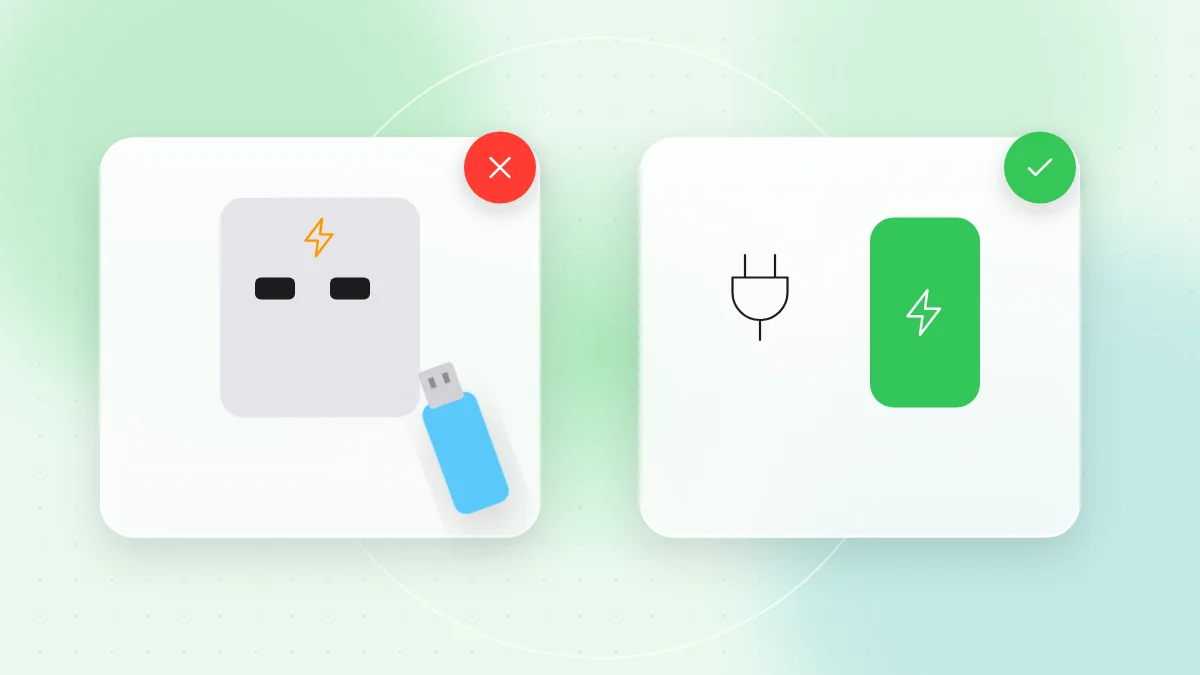
Is it safe to charge your phone in public?
How juice jacking works, and how likely it is
A USB port carries both power and data. The worry is that a modified public port, or a tampered cable left plugged in, opens a data connection that could copy files or try to install something harmful.
In practice, modern phones make this hard. iPhone and Android limit USB data when locked and ask before allowing access to your files. Real cases against ordinary travellers are rare, but the risk costs almost nothing to avoid.
What your phone's USB prompts mean
- iPhone: a "Trust This Computer?" message. Tap Don't Trust unless it is your own computer.
- Android: a USB notification asking what the connection is for, such as file transfer or charging only. Choose charging only; Android normally starts in charge-only mode.
If a prompt like this appears at a public charging point, the port is offering data, not just power. Unplug.
Safer ways to charge away from home
- Bring your own charger and plug it into a wall socket. A power socket provides only electricity, not data.
- Carry a power bank charged at home.
- Use your own cable. Avoid cables left attached to public chargers or offered by strangers.
- Consider a USB data blocker or a charge-only cable. These connect only the power lines, so no data can pass.
- Keep your phone locked while charging and keep its software updated.
Airports and hotels also offer free Wi-Fi; our public Wi-Fi security guide explains how to use it safely.
Unknown USB drives and suspicious cables
Never plug in a USB drive you found
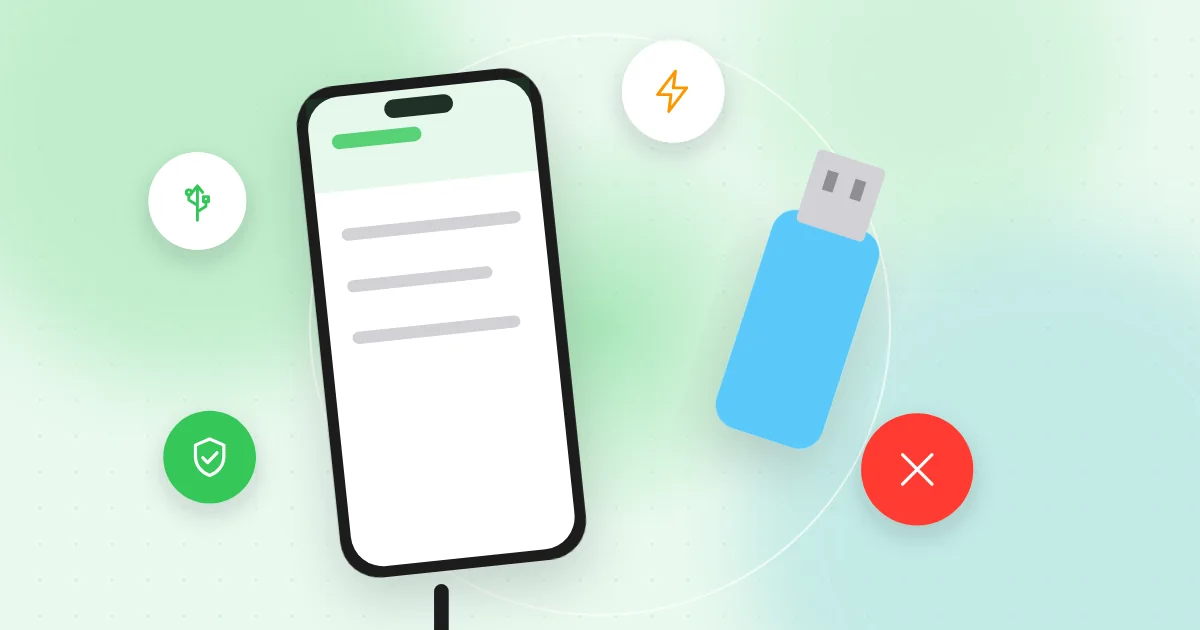
Leaving USB drives in car parks or offices is a known trick called a "USB drop". Someone plugs the drive in to find the owner, and it runs harmful software or pretends to be a keyboard that types commands by itself.
- Do not plug in a found USB drive, even to look for the owner. Hand it to staff or your IT team.
- Be careful with drives received as gifts or sent by post without a clear reason.
Malicious cables can look normal
Some attack cables look exactly like ordinary ones but hide a tiny chip. They are uncommon, but they exist, so use cables you bought yourself.
Buy chargers and cables from reputable sources
Cheap, unbranded chargers are a bigger everyday risk than hacking: they can overheat, damage your battery or even start a fire. Buy from the device maker or well-known shops, look for recognised safety markings for your country, and stop using any charger that gets very hot, smells of burning or has damaged insulation.
If your phone or laptop is lost or stolen
Set these up today:
- A strong screen lock. A PIN of at least six digits on your phone, a password on your laptop, and automatic locking after a short time.
- Encryption. Modern iPhones and Android phones encrypt your data automatically once a screen lock is set. On laptops, check that full-disk encryption is turned on in Windows or macOS settings.
- Find-my-device. Turn on the find-my-device feature on your phone and laptop.
- Backups, so you can erase a lost device without losing your photos.
If a device goes missing:
- Use find-my-device to locate it and put it into lost mode.
- If you cannot recover it, use remote wipe to erase it.
- Change the passwords for your email, banking and other important accounts, and sign the lost device out of them.
- Contact your mobile carrier to block the SIM, and tell your bank if banking apps were installed.
Buying second-hand and selling your old devices
Before you sell or give away a device
- Back up everything you want to keep.
- Sign out of your accounts and turn off find-my-device, so the next owner is not blocked by activation lock.
- Remove the device from your account's list of trusted devices.
- Use the built-in factory reset (the erase or reset option in Settings on iPhone, Android, Windows or macOS). With encryption on, this makes your old data unreadable.
- Remove the SIM card and any memory card.
When you buy a used device
- Make sure it is not still linked to someone else's account.
- Factory reset it yourself before adding your own accounts.
- Check that it still receives security updates; an outdated phone is risky for banking.
Hardware security keys for your most important accounts
A hardware security key is a small USB or NFC device that you use to sign in, as a second factor or as a passkey. It only works on the real website it was registered with, so a fake login page cannot trick it.
- Use one for your main email, password manager and other high-value accounts.
- Register two keys and keep the spare at home, so losing one does not lock you out.
- Keep backup codes too, stored offline.
Our guides to two-factor authentication and password managers and passkeys explain how these fit together.
Physical privacy in daily life
- Webcam covers. A slide cover on your laptop camera gives peace of mind.
- Shoulder surfing. Shield your PIN at cash machines and shop terminals, and notice who can see your screen on trains or in cafés.
- Privacy screens. A privacy filter makes your screen hard to read from the side.
- Lock screen notifications. Hide message previews so one-time codes are not visible on a locked phone.
Quick checklist
- Charge from a wall socket with your own charger, or from your own power bank.
- Never tap "Trust" or allow data access when you only want to charge.
- Use a USB data blocker or charge-only cable if you often charge in public.
- Never plug in USB drives you found or did not expect.
- Buy chargers and cables from the device maker or well-known shops.
- Keep a strong screen lock, encryption and find-my-device turned on.
- Sign out and factory reset any device before you sell it.
- Protect your most important accounts with a hardware security key.
- Use a webcam cover and a privacy screen when working in public.
FAQ
Can my phone get hacked just by charging it?
It is possible in theory but rare in practice, because modern phones limit USB data when locked and ask before allowing access. Using your own charger and a wall socket removes the risk.
Are USB data blockers worth it?
For people who travel often or rely on public charging ports, yes. They are cheap and let power through while stopping data.
What should I do with a USB drive I found?
Do not plug it in. Give it to staff where you found it, or to your IT team at work.
Is a factory reset enough before selling my phone?
On a modern, encrypted phone, a factory reset after signing out of your accounts and turning off find-my-device is enough for most people. Remove the SIM and memory card too.
Hardware security is mostly about small habits: your own charger, a locked screen and caution with unknown devices. The same caution helps online, so before opening a link from an unfamiliar QR code, check where it leads with the free QR-TH scanner.